Changelog

What's new in Clavarius

New features and improvements, newest first. Step-by-step guides for everything are in the help centre.

  1. New

    Your own sign-in questions

    Ask visitors what you need to know when they sign in.

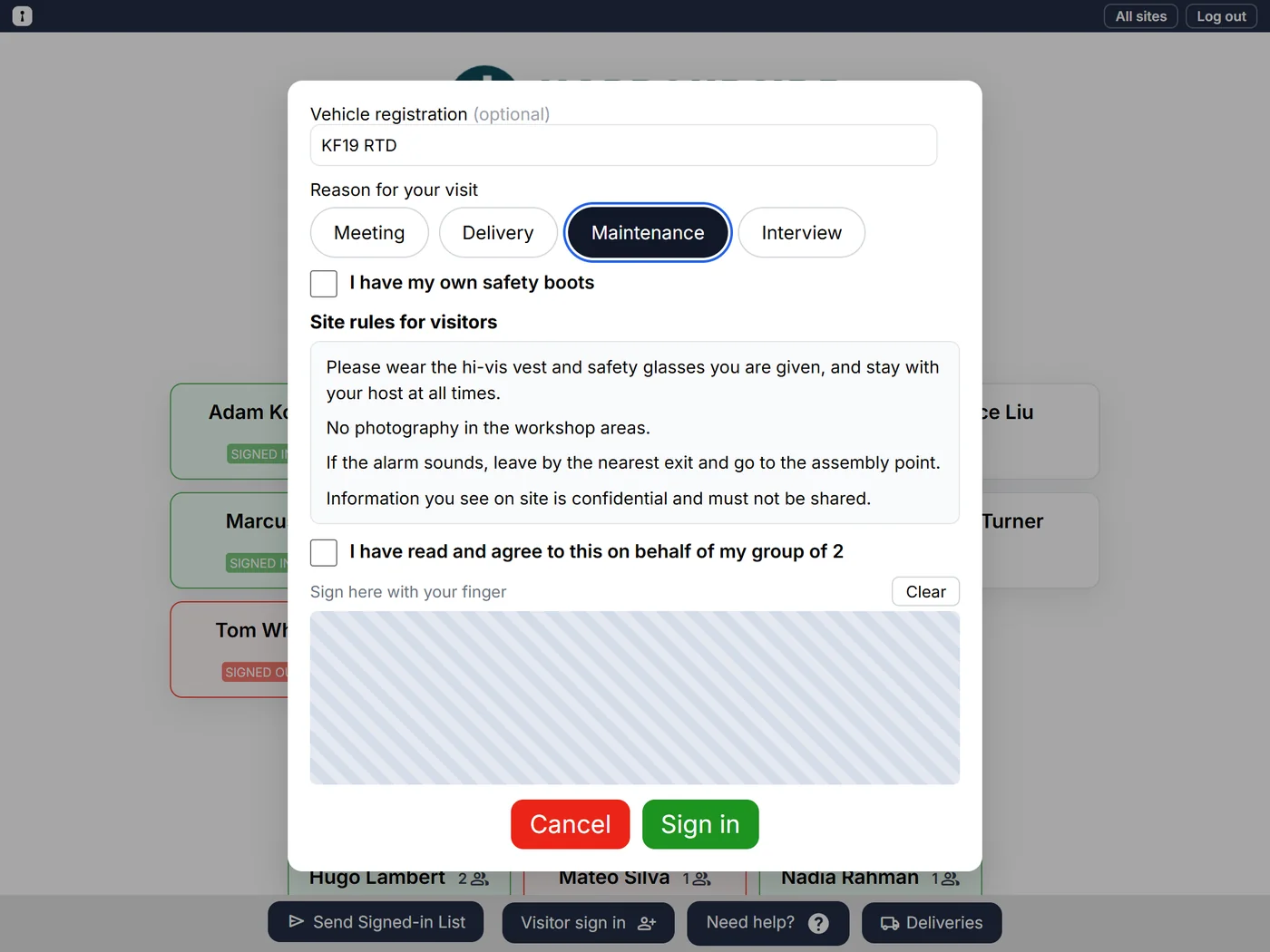
    • Add questions to the visitor sign-in form: a short answer, yes or no, a choice of up to eight, or a statement to tick, such as "I have my own safety boots".
    • Make any question required, and ask it at every site or just some.
    • Answers are kept with each visit, and can go in the email to the person they're visiting, for example a car registration.
    The visitor sign-in form asking for a vehicle registration, the reason for the visit as buttons, and a tick box for safety boots
  2. Improved

    Name everyone in a group, and find your name faster

    Roll-calls can now tick off each person in a visitor group, and big teams find their name in a moment.

    • Visitors signing in a group can name the others too. Each named person gets their own line on the roll-call, and their names appear on the Signed-in List.
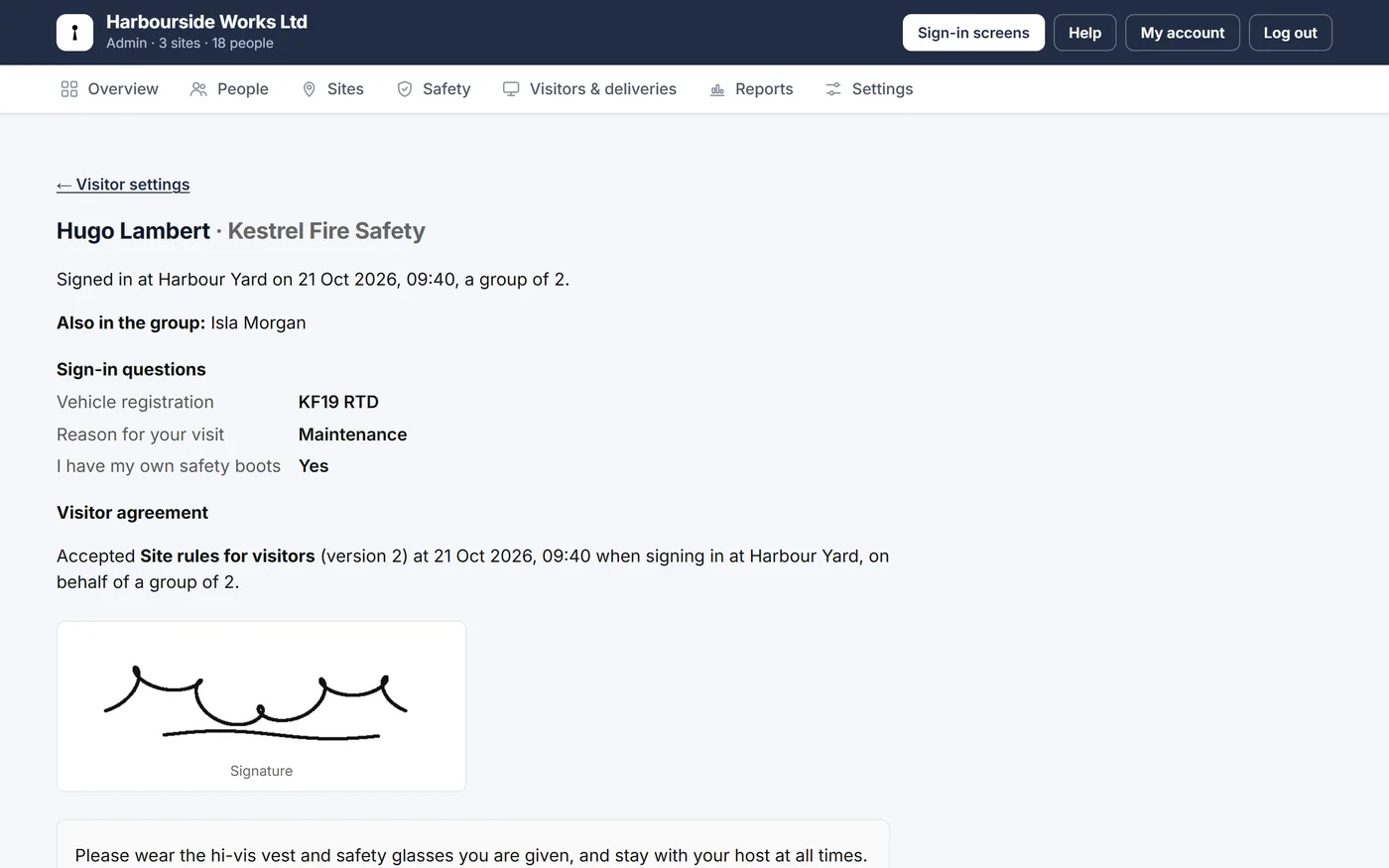
    • Each visit's details show the group, the answers to your questions and the agreement accepted, all on one page.
    • At sites with more than 20 staff, a Find your name box above the names narrows the list as you type.
    A visit's details: the visitor, the other person in their group, their answers and the agreement they signed
  3. New

    Visitor agreements and signatures

    Visitors accept your site rules or an NDA before they sign in, and can sign with a finger.

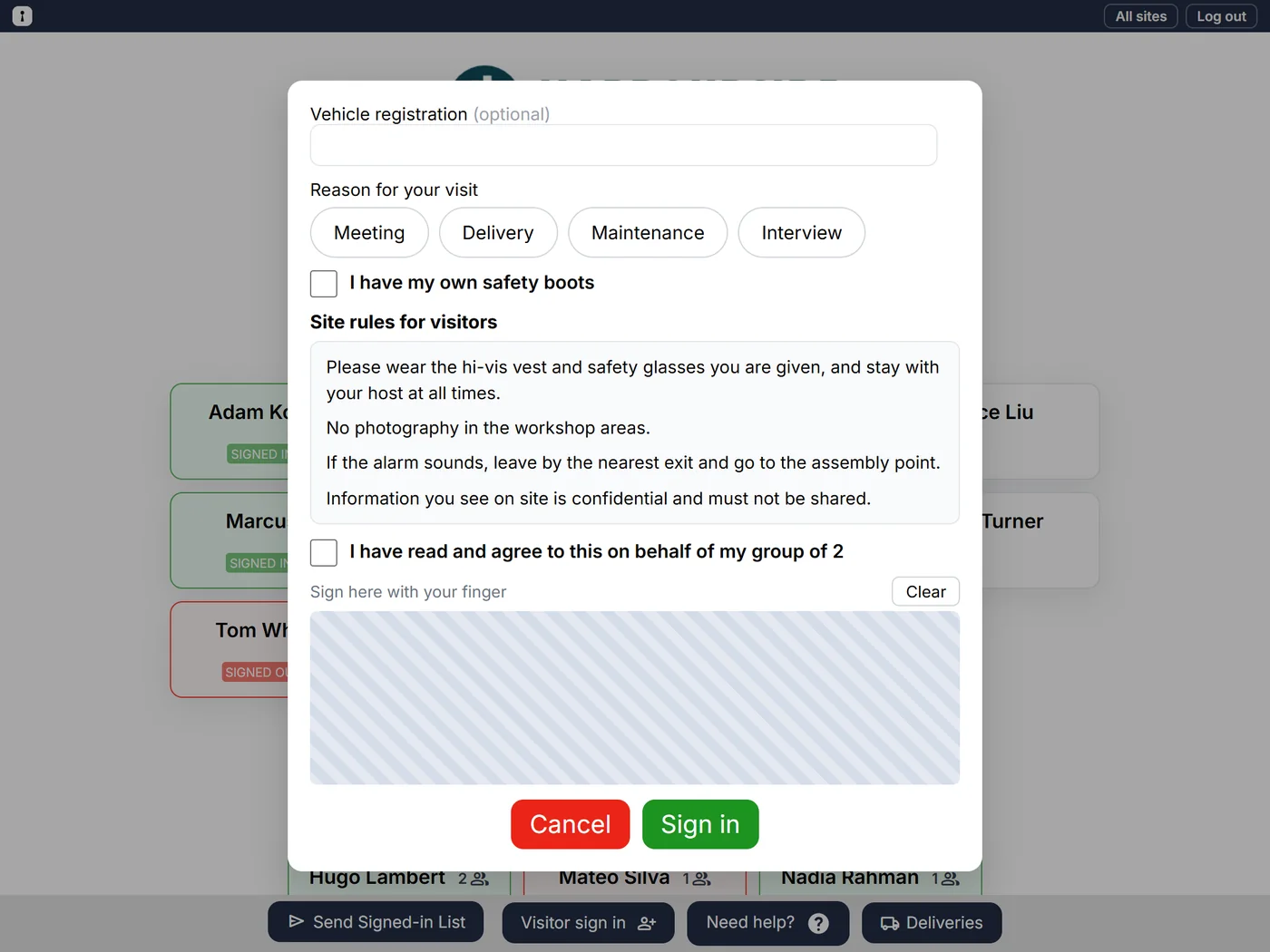
    • Write your agreement once for every site, or give a site its own. Visitors tick to agree (on behalf of their group) before they can sign in.
    • Ask for a signature if you need one: visitors sign in a box on the tablet with their finger.
    • Every version is kept. See exactly which wording each visitor accepted, when, and their signature, from the sign-in history.
    The visitor sign-in form with site rules to read, a tick box to agree on behalf of a group of 2, and a signature box
  4. New

    A Need help? button, and Wi-Fi by QR code

    Visitors can call reception from the tablet, and join your guest Wi-Fi with their camera.

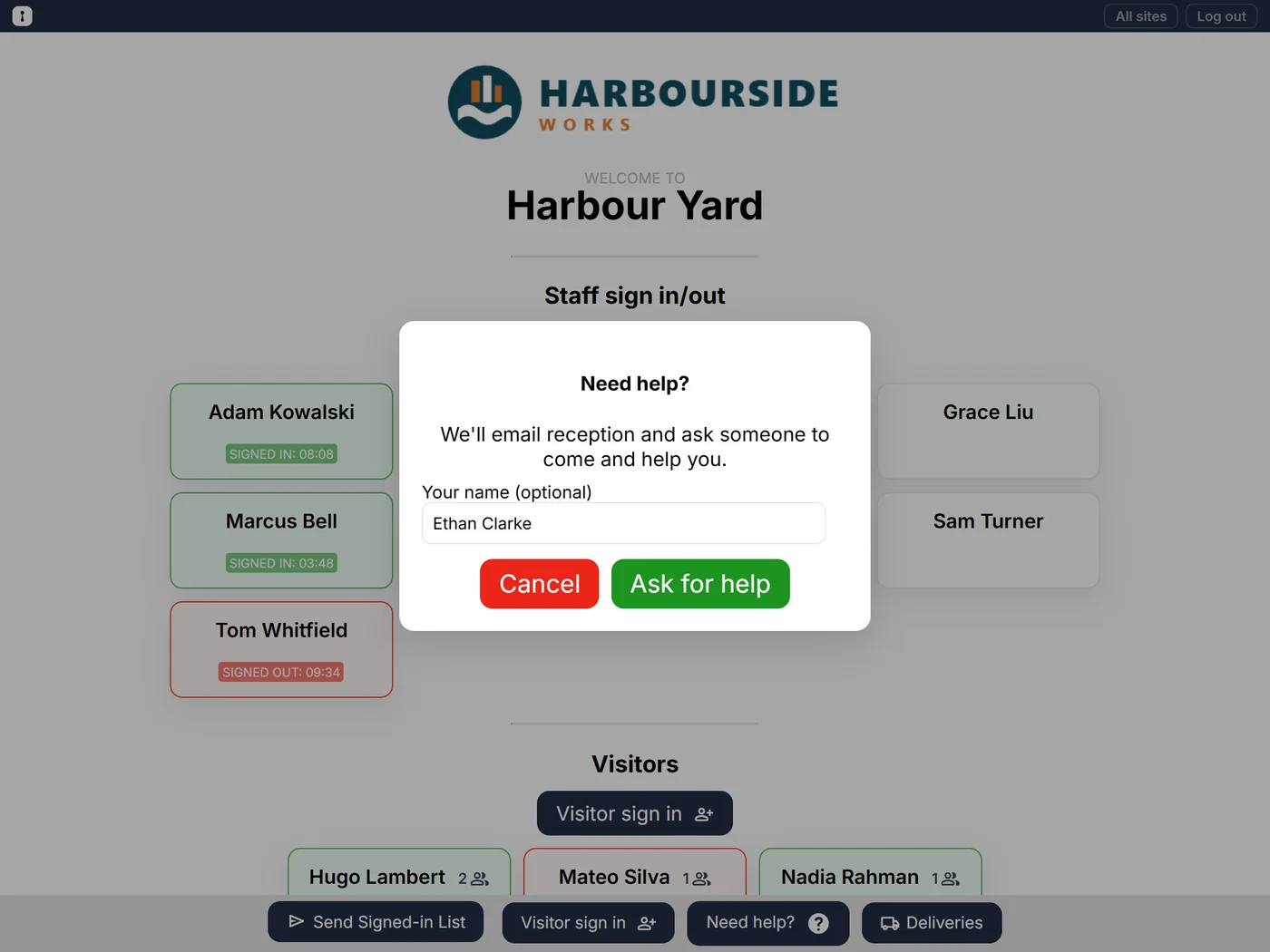
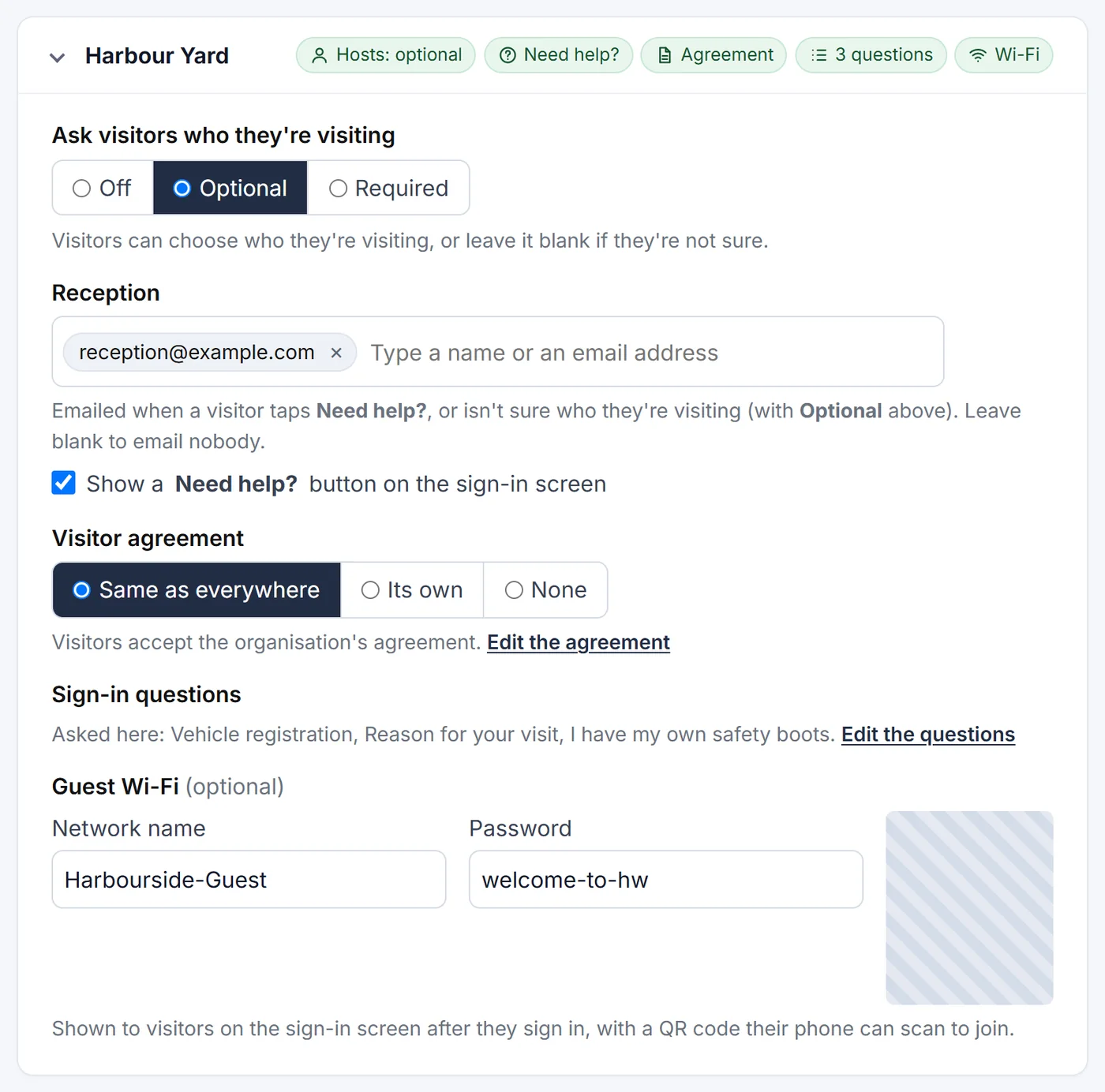
    • Turn on a Need help? button for any site. Visitors add their name if they like, and reception gets an email asking someone to come to the sign-in screen.
    • Your guest Wi-Fi now comes with a QR code on the visitor's confirmation: point a phone camera at it to join the network.
    A Need help? box on the sign-in tablet, asking for an optional name, with an Ask for help button
  5. New

    Your sign-in tablets in an emergency

    Tablets show everyone where to go during a roll-call, and keep working when the internet drops.

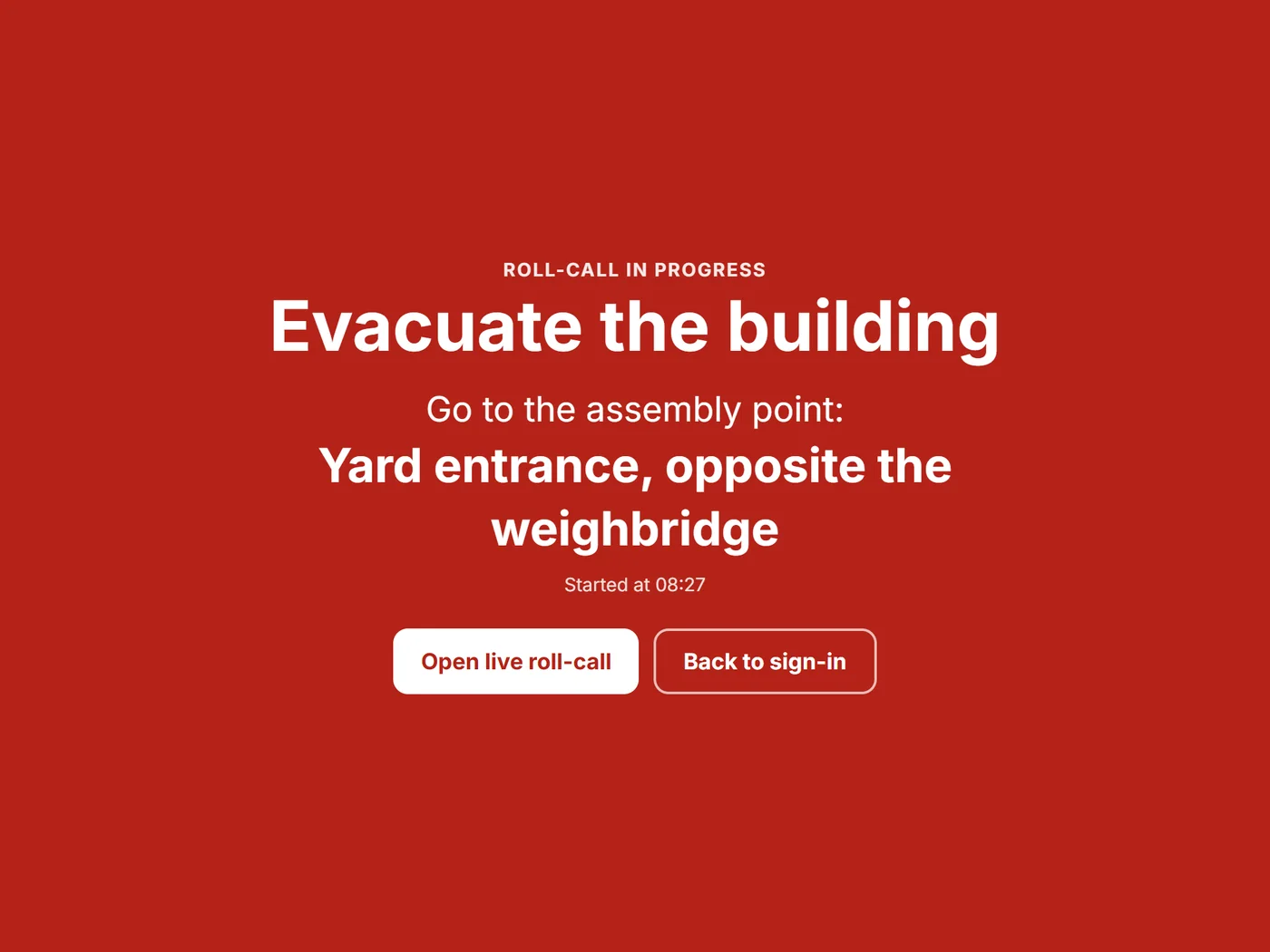
    • When a roll-call starts, every sign-in tablet at that site turns red and shows the assembly point, with a button to open the live roll-call. It clears itself when the roll-call is finished.
    • Each tablet keeps an up-to-date copy of who's on site. If the internet drops, Send Signed-in List shows that list to tick off and print, right on the tablet.
    • When the connection comes back, submit the roll-call from the tablet and the summary is emailed to your contacts, or carry on as a live roll-call with the people you ticked already marked.
    • Open the live roll-call on the tablet itself, with a button to go back to the sign-in screen.
    A sign-in tablet showing Evacuate the building and the assembly point, with Open live roll-call and Back to sign-in buttons
  6. New

    Assembly points

    Tell people where to gather, for each site.

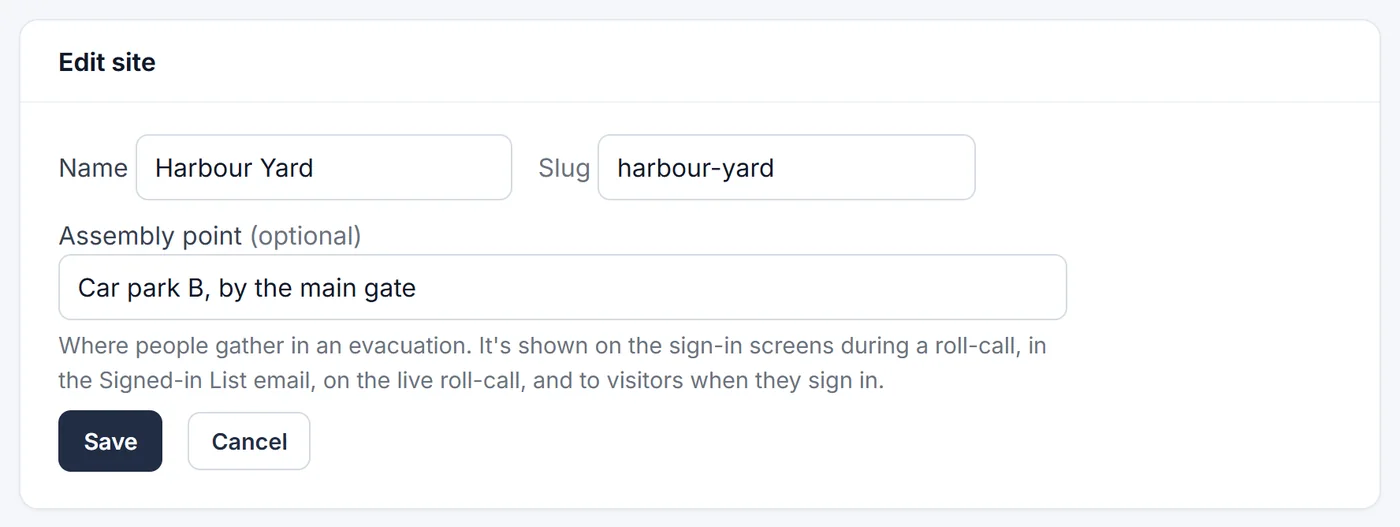
    • Add an assembly point to each site, such as "Car park B, by the main gate".
    • It's shown on the tablets during a roll-call, in the Signed-in List email, on the live roll-call, and to visitors when they sign in.
    Editing a site with an assembly point of Car park B, by the main gate
  7. Improved

    Safety roles in your spreadsheet

    Set fire marshals, first aiders and who can receive visitors when you add people or import a spreadsheet.

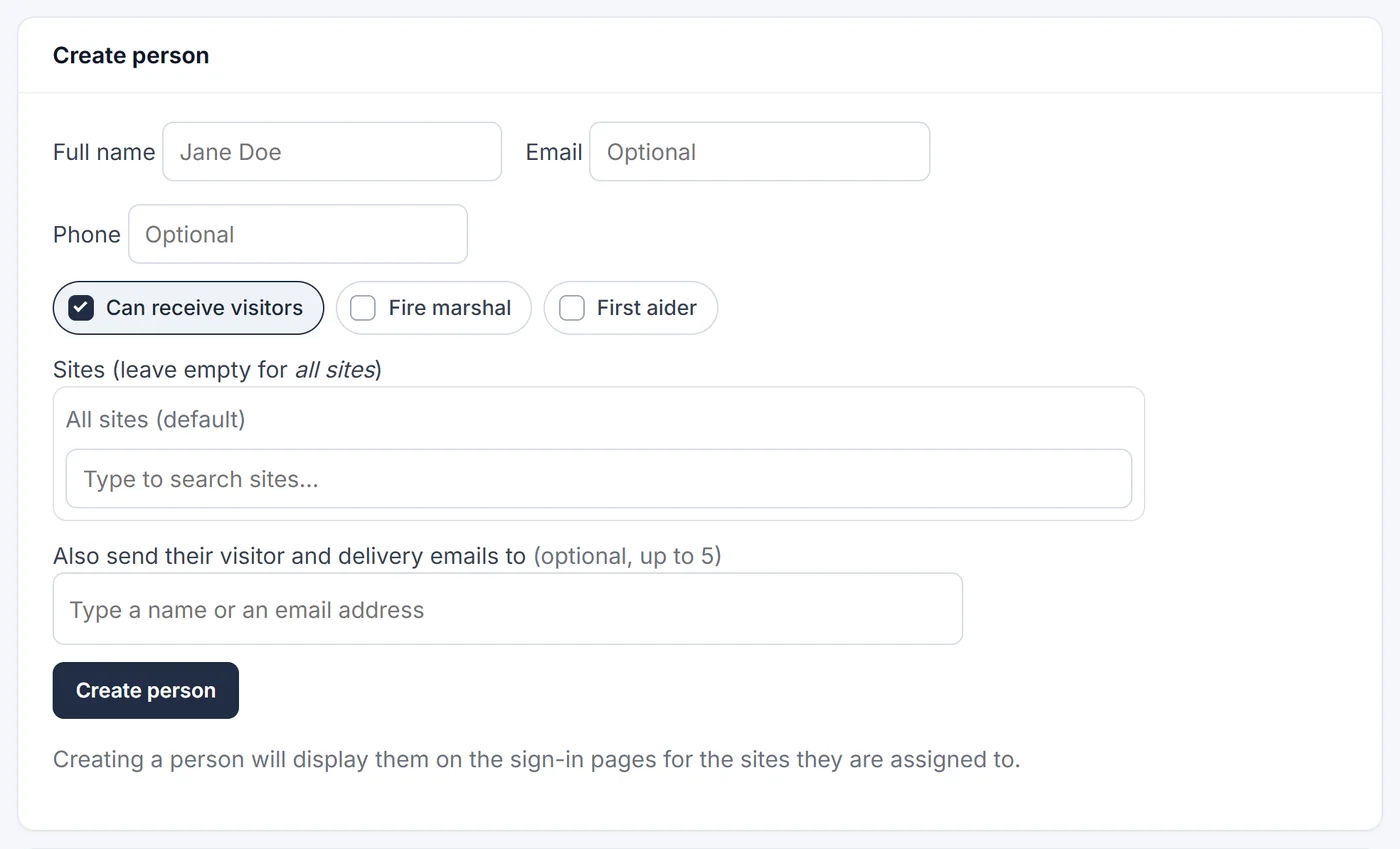
    • The Create person form has the same options as editing someone, as simple tick-on, tick-off buttons.
    • Spreadsheet import and export include yes/no columns for can receive visitors, fire marshal and first aider, so you can set them for your whole team at once.
    The Create person form with Can receive visitors, Fire marshal and First aider buttons
  8. New

    Live roll-call for fire marshals

    The Signed-in List now opens a live roll-call that marshals tick off together on their phones.

    • Send the Signed-in List as usual. The email has an "Open live roll-call" button, with no login needed.
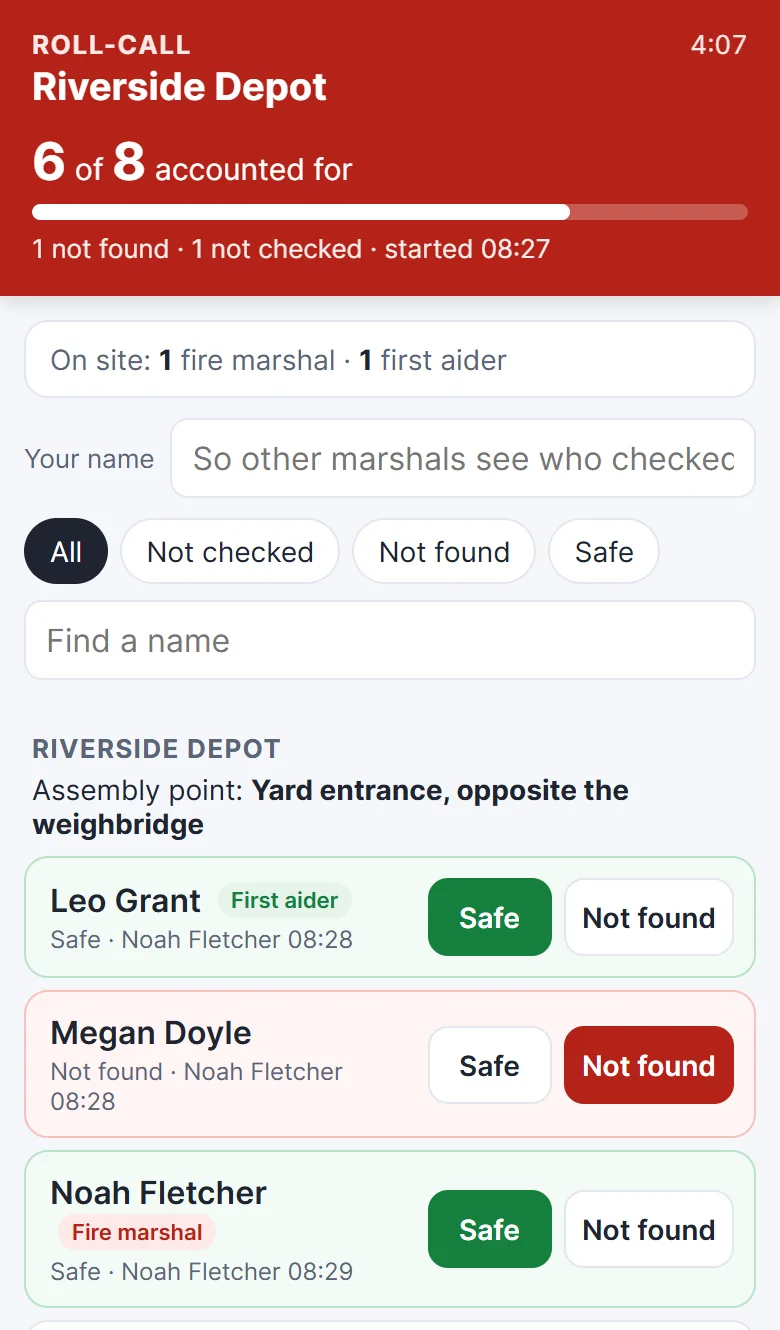
    • Marshals tap Safe or Not found next to each person. Everyone's phone updates within seconds and shows who checked whom, with a running count of who's accounted for.
    • Fire marshals and first aiders are labelled, and visitor groups count as their full size.
    • Finish the roll-call and a summary is emailed: who was missing, who wasn't checked and how long it took. Admins see a live banner on the Overview while it runs.
    The live roll-call on a phone: 5 of 8 accounted for, with Safe and Not found buttons next to each person
  9. New

    Fire drill records

    Every roll-call and drill is kept, ready for your fire risk assessment or an inspection.

    • Tick "This is a drill" on the roll-call page, at any time, so a real alarm never needs an extra step.
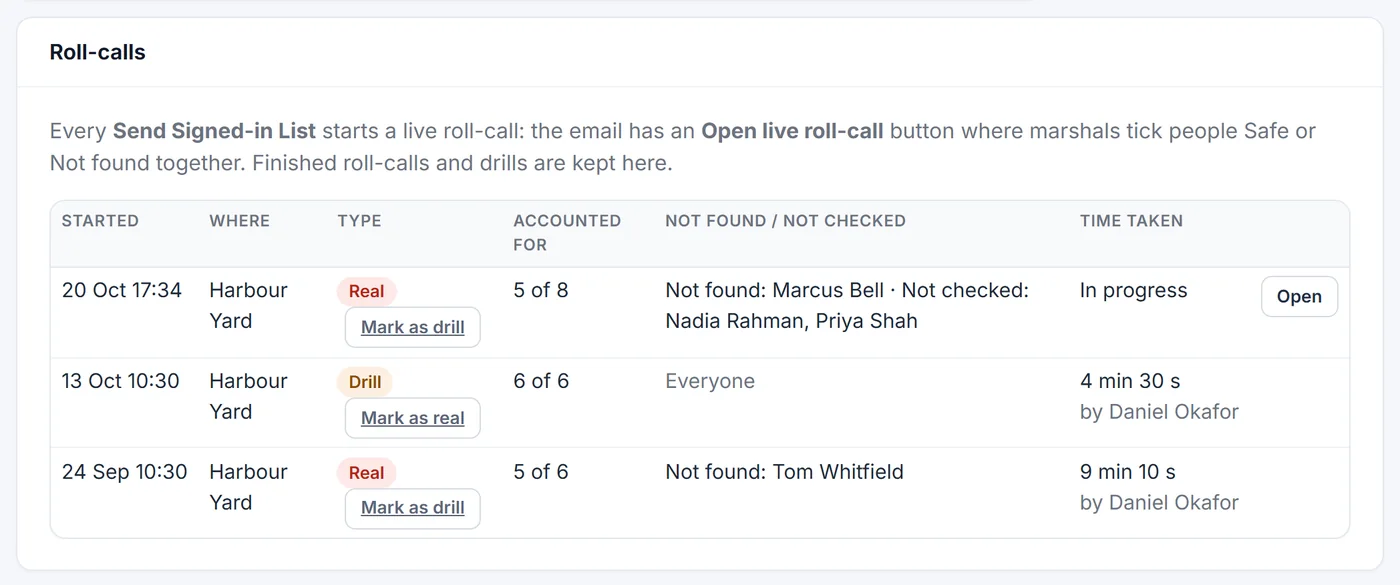
    • The Safety tab lists each roll-call: drill or real, how many were accounted for, who was missing and how long it took.
    The Roll-calls list on the Safety tab with drills and real alarms, people accounted for and time taken
  10. Improved

    A faster People page

    Quick filters, safety roles at a glance, and editing right where you are.

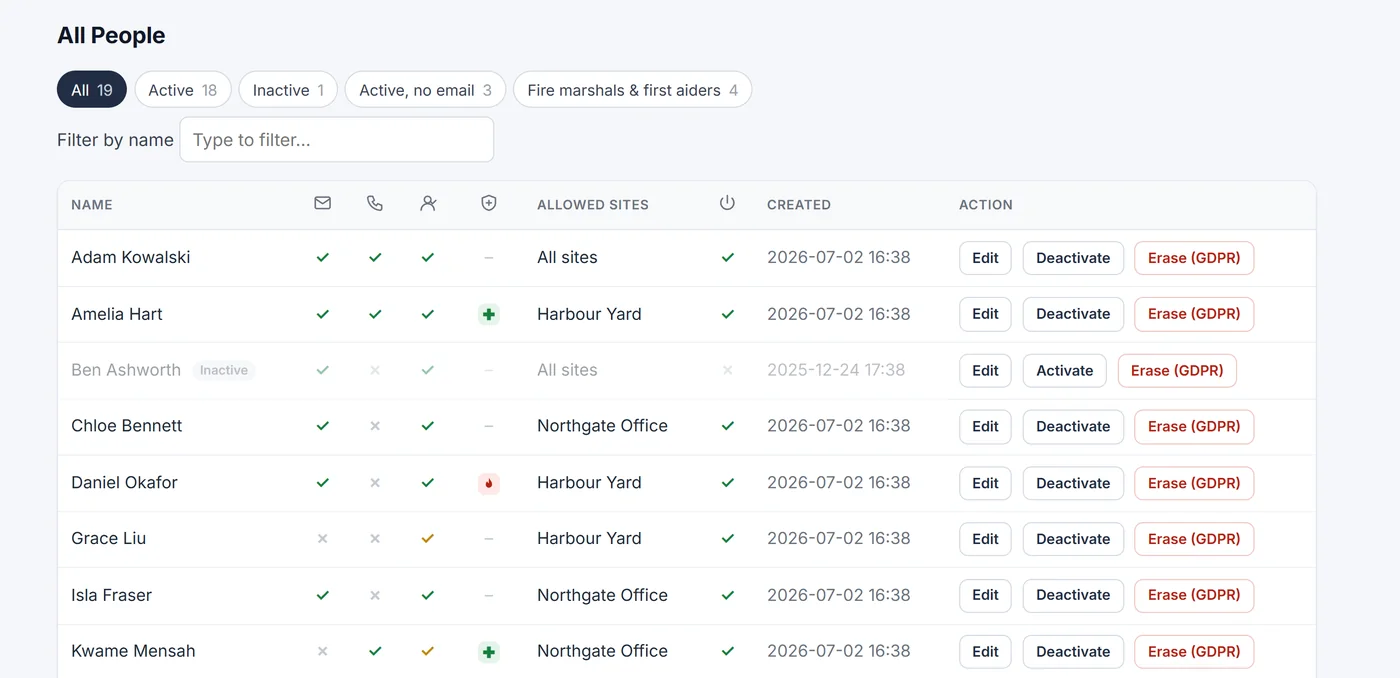
    • Filter to active people, inactive people, active people without an email, or fire marshals and first aiders.
    • Mark people as fire marshals or first aiders; a column shows who is which. Inactive people are faded.
    • Edit opens just below the person's row instead of at the top of the page.
    The People list with quick filters, icon columns and a fire marshal and first aider column
  11. Improved

    See whether your emails were delivered

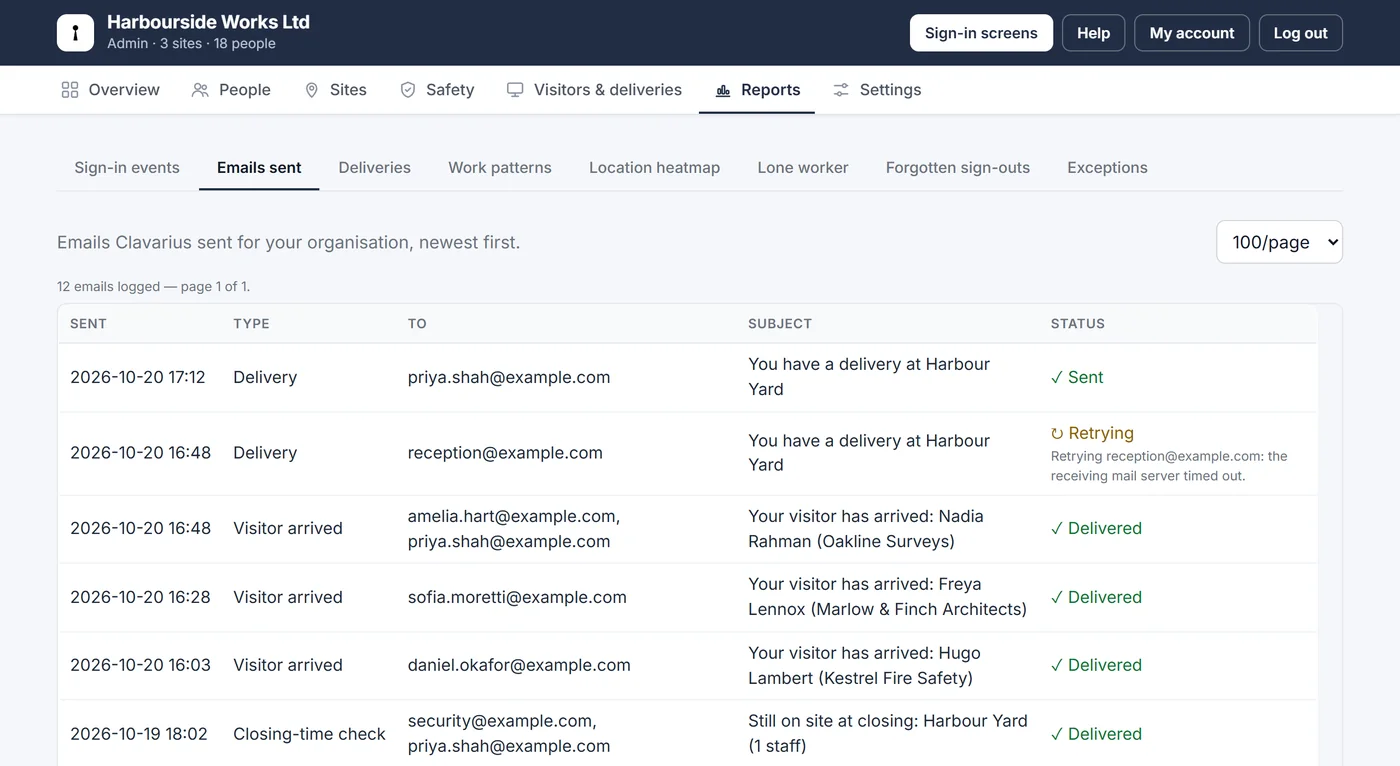
    Emails sent now shows what happened to each email after it left, not just that it was sent.

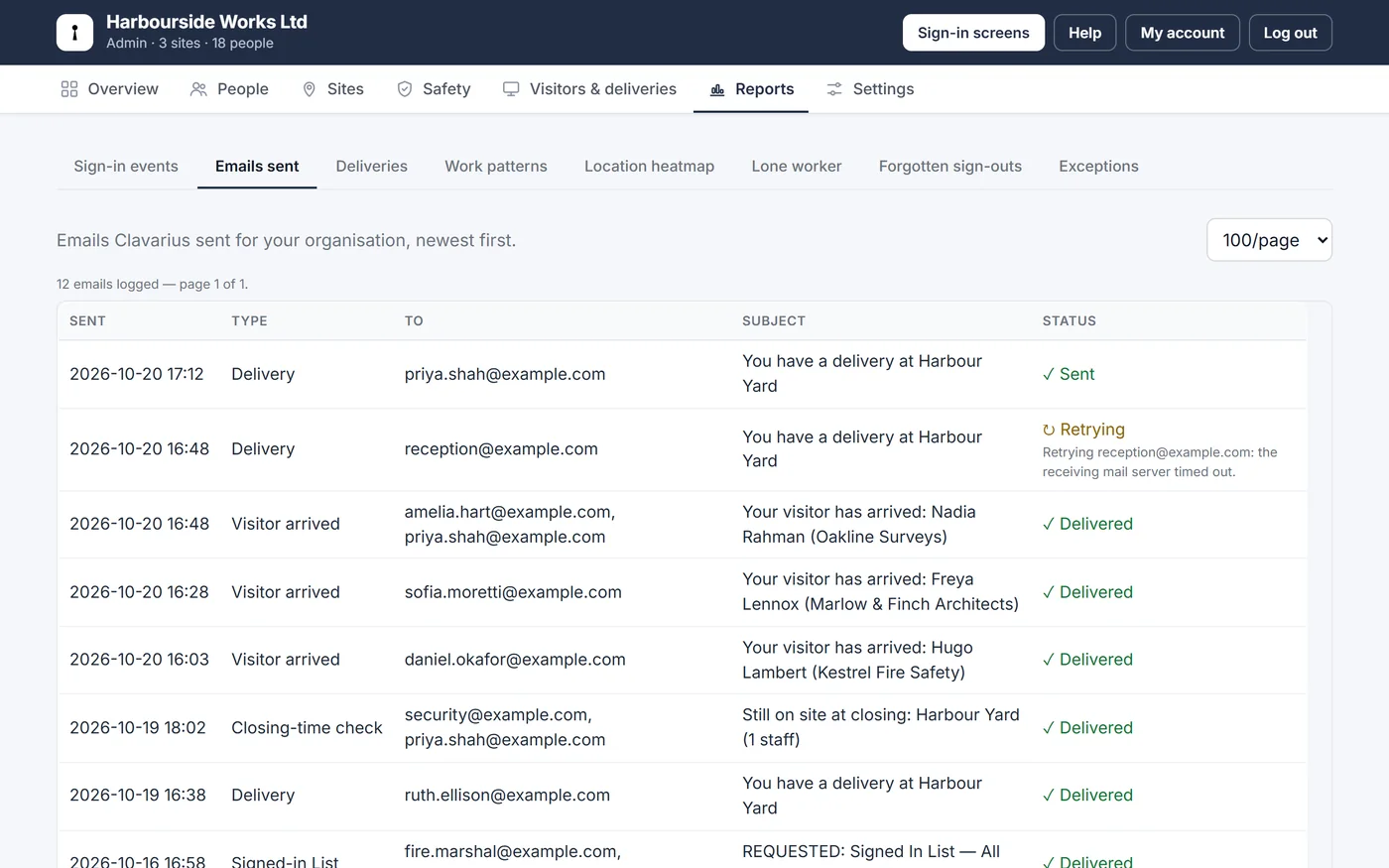
    • Delivered, retrying (the receiving server was busy, so it's tried again automatically) or failed, with the reason.
    • The Overview also warns you when an alert email still goes to someone who is no longer active.
    Emails sent with Delivered and Retrying statuses and the reason for the retry
  12. New

    Tell staff when their visitor arrives

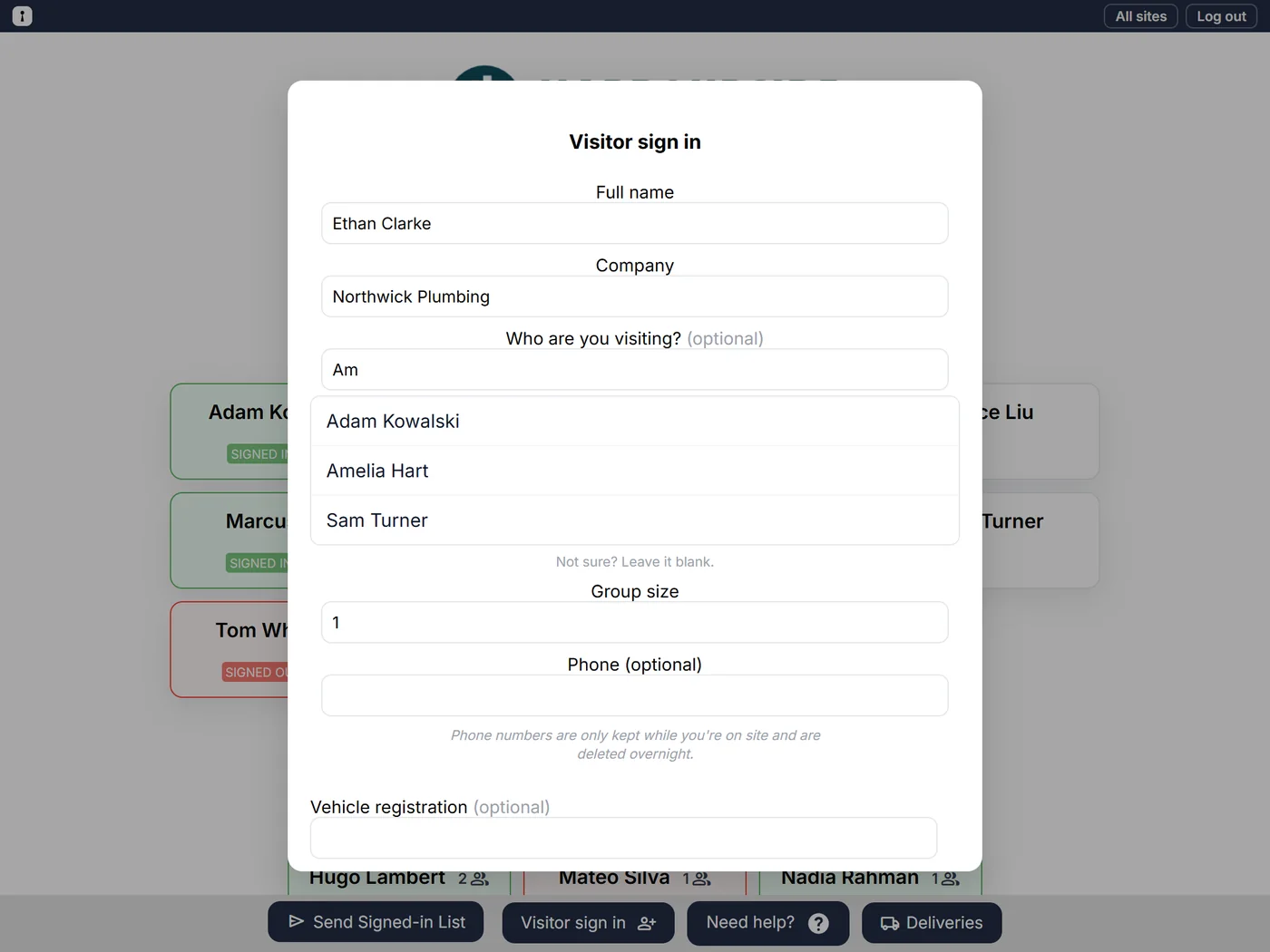
    Visitors can choose who they're here to see, and that person gets an email straight away.

    • Choose for each site whether visitors are asked who they're visiting: off, optional or required.
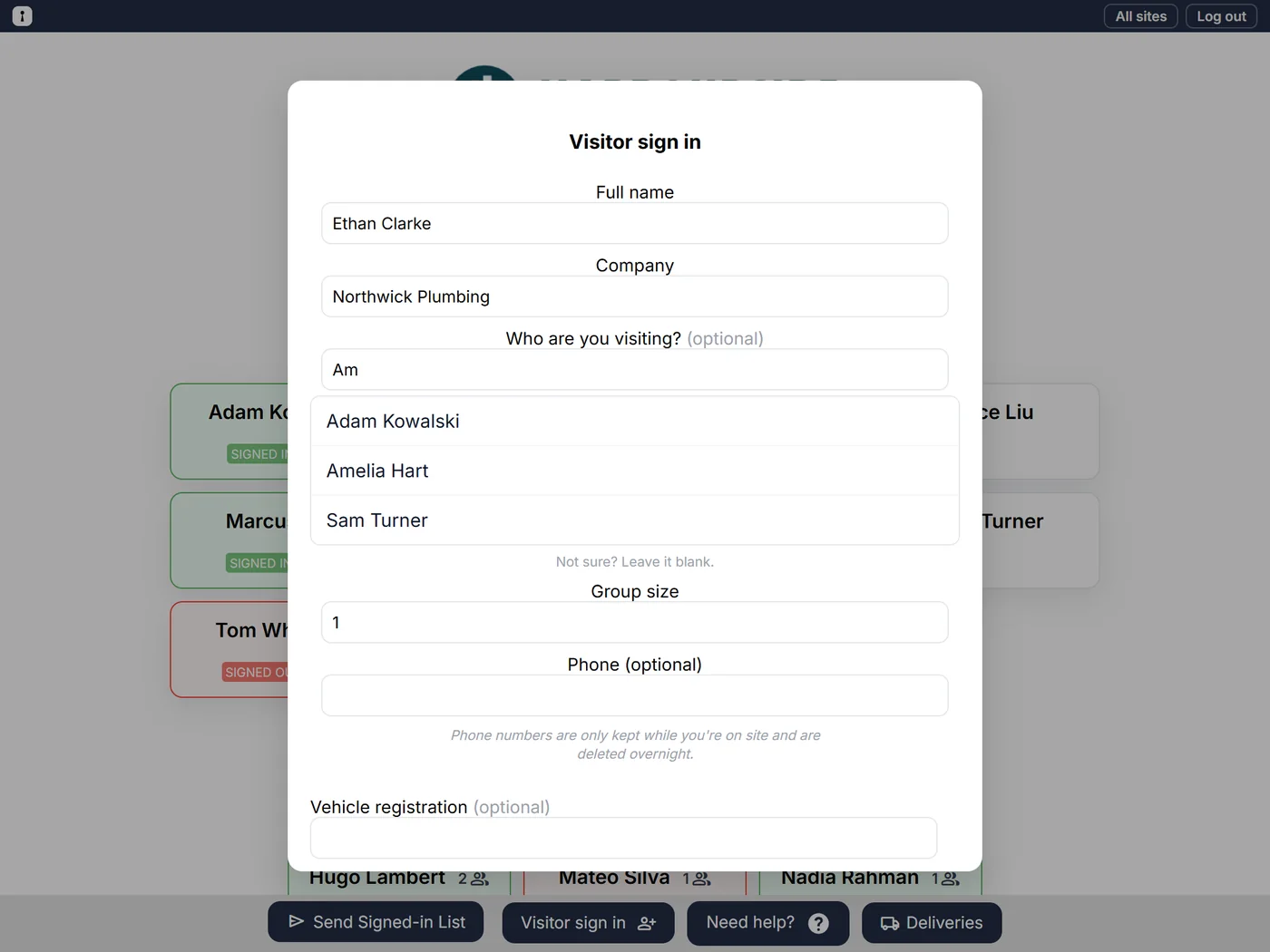
    • Visitors start typing a name and pick from the list. Only names are shown on the tablet, never email addresses.
    • The person they chose gets a "your visitor has arrived" email, and the visitor sees "We've let them know you're here". Visitors who aren't sure can leave it blank, and you can choose who hears about them, such as reception.
    • Who each visitor came to see appears in the Signed-in List and your sign-in history.
    The visitor sign-in form on a tablet, with names suggested under 'Who are you visiting?'
  13. New

    Guest Wi-Fi on the sign-in screen

    Show visitors your guest Wi-Fi details as soon as they've signed in.

    • Add a network name and password for each site in the new Visitors settings.
    • Visitors see them on a "You're signed in" confirmation, along with who has been told they're here.
    The Visitors settings: whether to ask who visitors are visiting, who to tell if they're not sure, and the guest Wi-Fi
  14. Improved

    Copies for assistants, and a tidier People list

    An assistant or deputy can get someone's visitor and delivery emails, and the People list shows the essentials at a glance.

    • On a person's record, choose who should also get their visitor and delivery emails: other people or any email address.
    • Untick "Can receive visitors" for anyone visitors shouldn't choose.
    • The People list shows ticks for email, phone, visitors and active, so it fits on one screen. Hover a tick to see the address or number.
    The People list with tick columns for email, phone, visitors and active
  15. New

    Closing-time check

    At each site's closing time, find out who's still signed in, and sign them out if you choose.

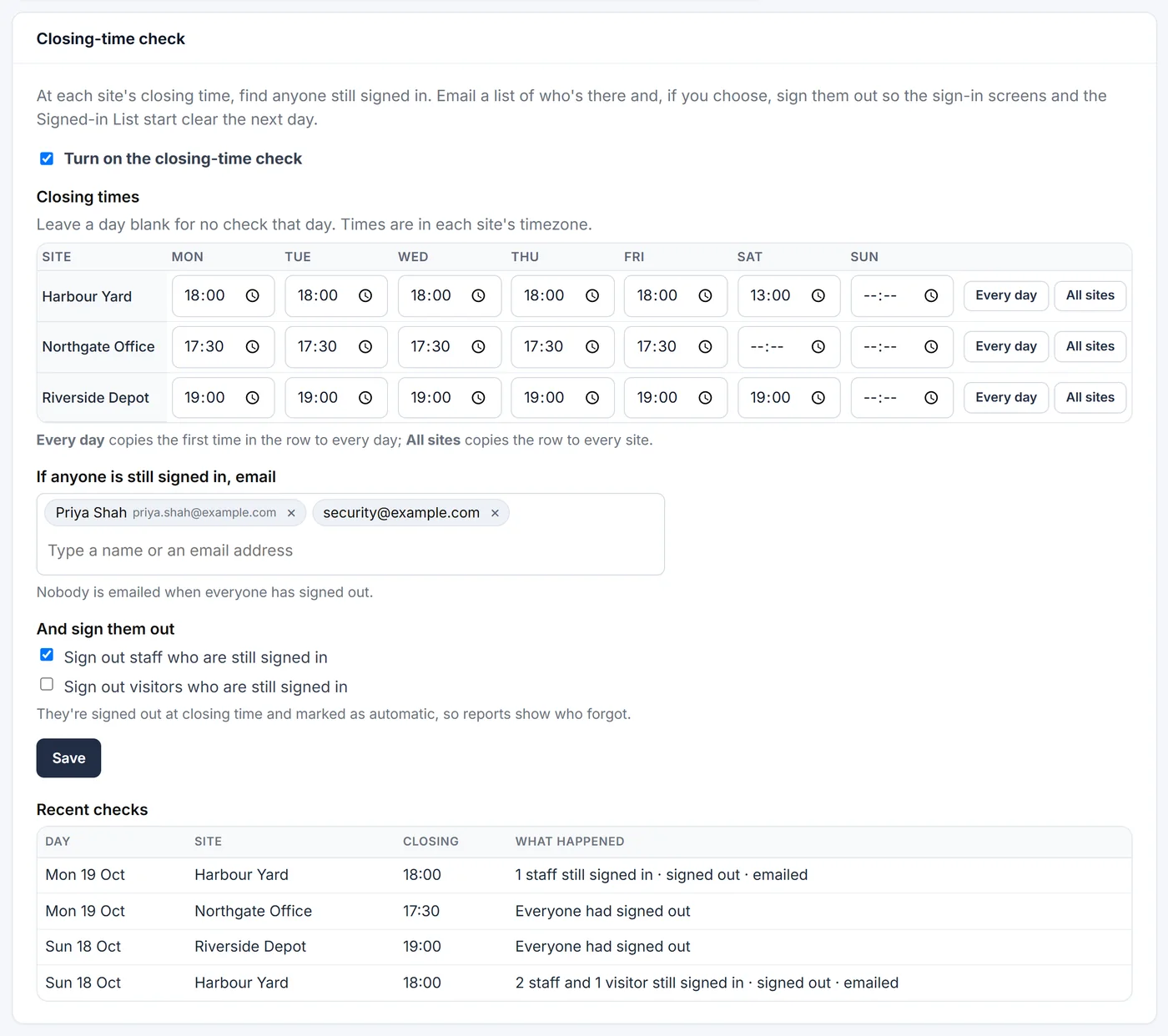
    • Set a closing time for each site and day of the week, with buttons to copy a time to every day or a row to every site.
    • If anyone is still signed in at closing time, the people you choose get an email listing each person and when they signed in. Nobody is emailed when everyone has left.
    • Optionally sign out staff, visitors or both, so the sign-in screens and the Signed-in List start the next day clear. These sign-outs are marked as automatic, so reports show who forgot.
    • Off until you turn it on, and Recent checks shows what happened at each site.
    The Closing-time check settings: closing times per site and weekday, who to email, sign-out options and recent checks
  16. Improved

    Pick people for alert emails

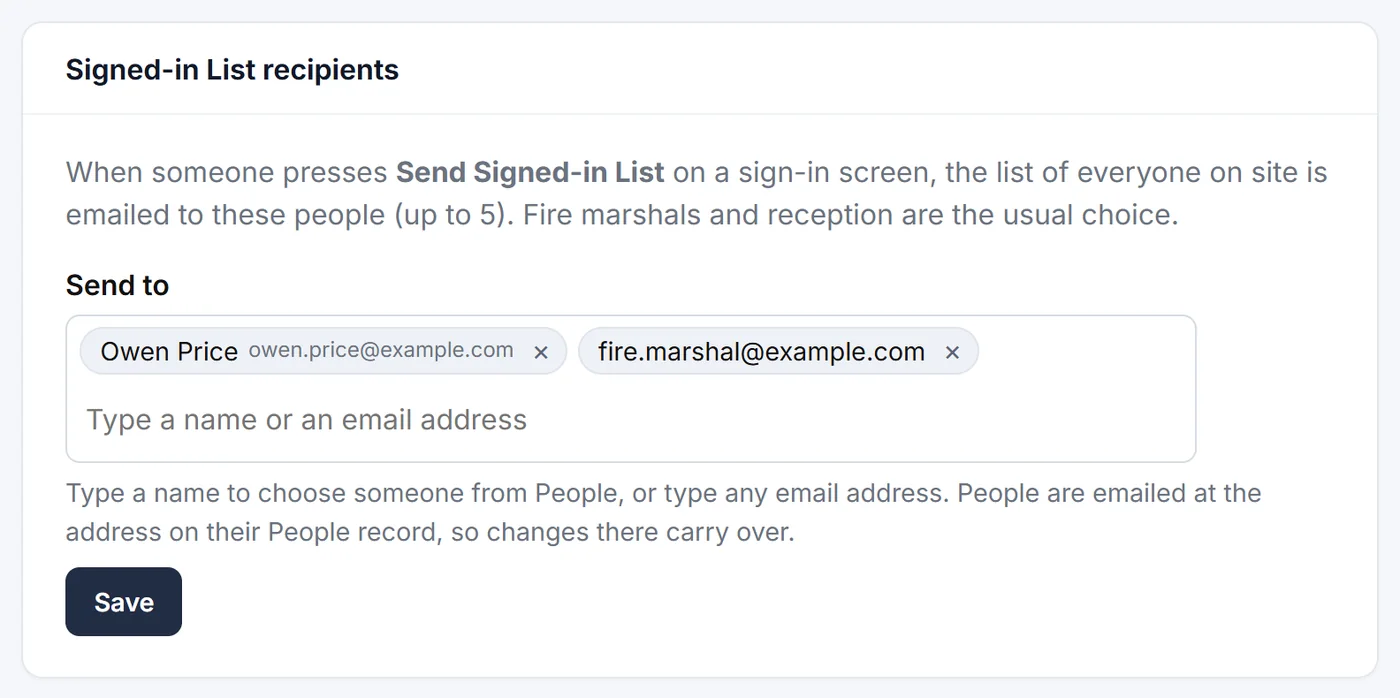
    Choose who gets each alert from your People list, or type any email address.

    • Works the same for the Signed-in List, lone-worker alerts and escalation, and the closing-time check.
    • Type a name to pick someone, or type or paste email addresses such as a shared reception or security mailbox.
    • People are emailed at the address on their People record, so if it changes, alerts follow. Anyone made inactive stops getting them.
    The Signed-in List recipients box with one person chosen from People and one typed email address
  17. New

    An Exceptions report

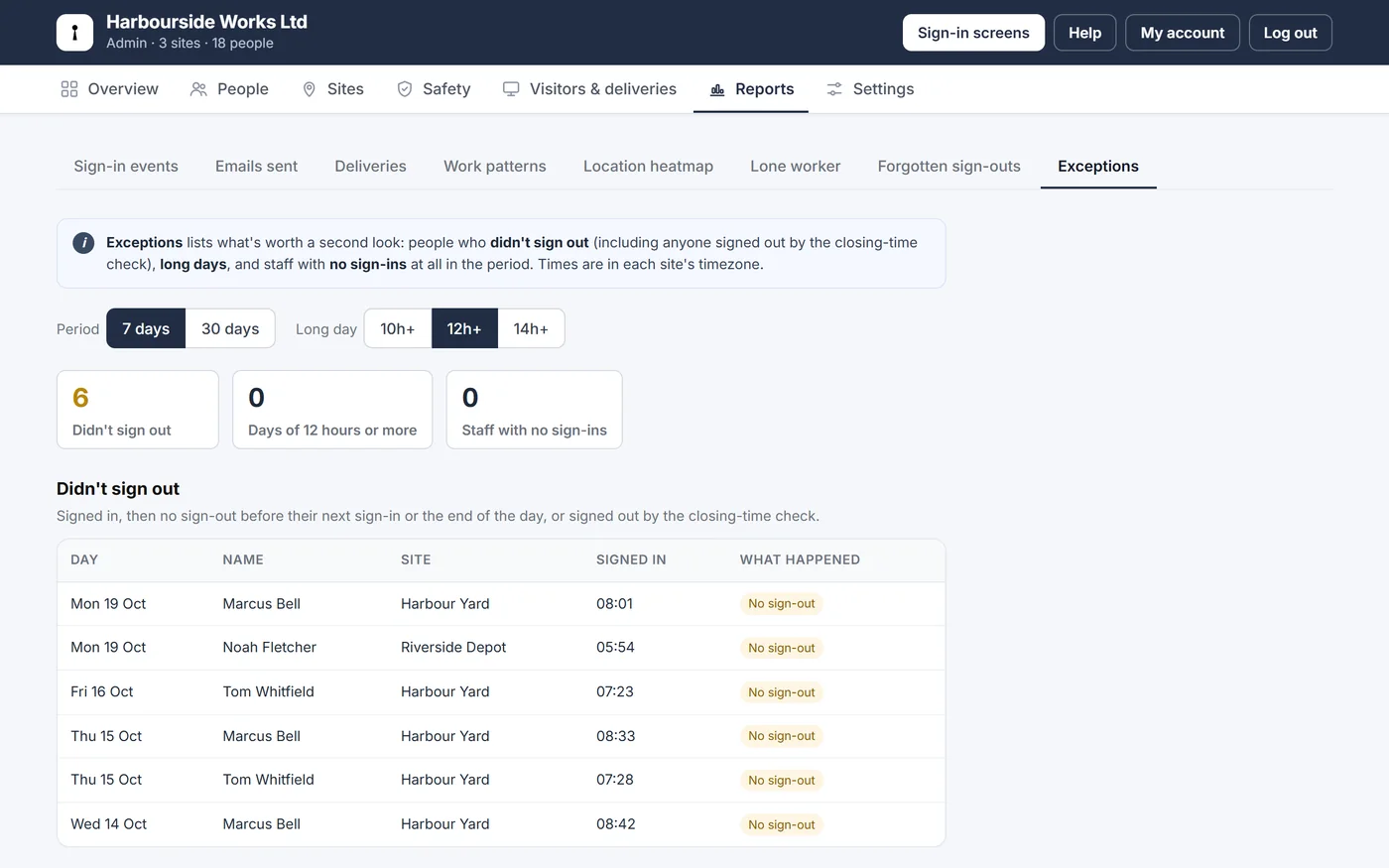
    The things worth a second look from the last week or month, on one page.

    • Who didn't sign out, including anyone signed out by the closing-time check.
    • Long days of 10, 12 or 14 hours or more.
    • Active staff who haven't signed in at all, so you can tidy up leavers.
    The Exceptions report: counts of missed sign-outs, long days and staff with no sign-ins, with the list of missed sign-outs
  18. New

    A delivery log in Reports

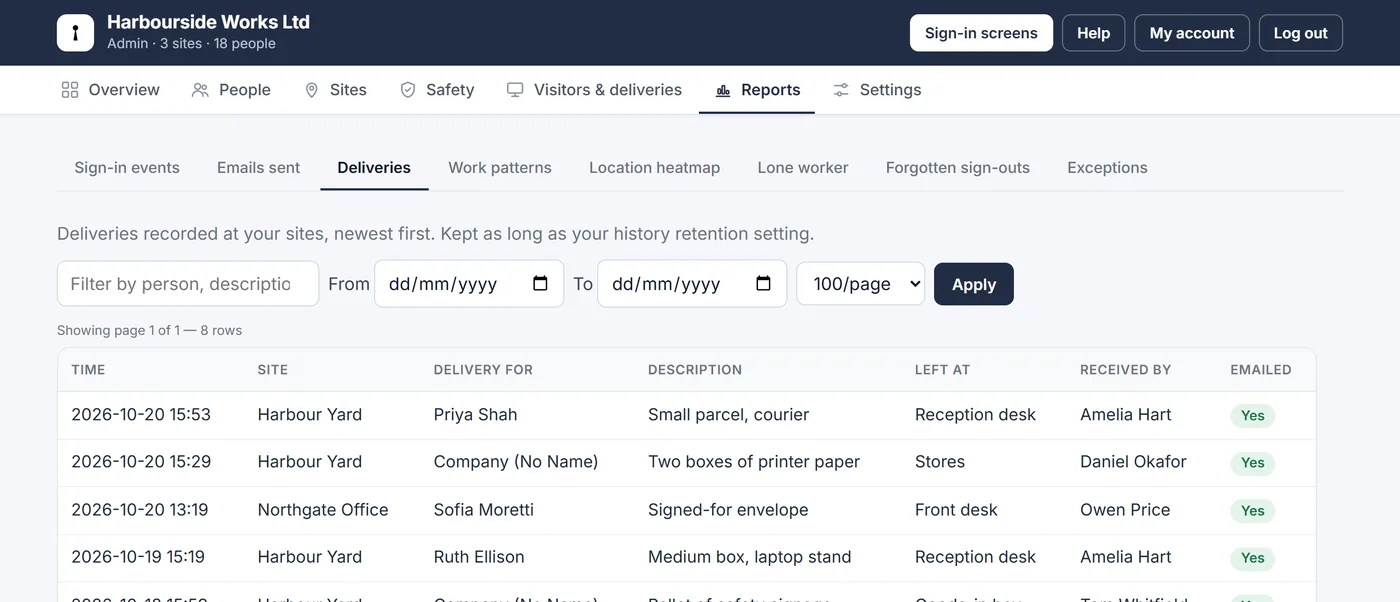
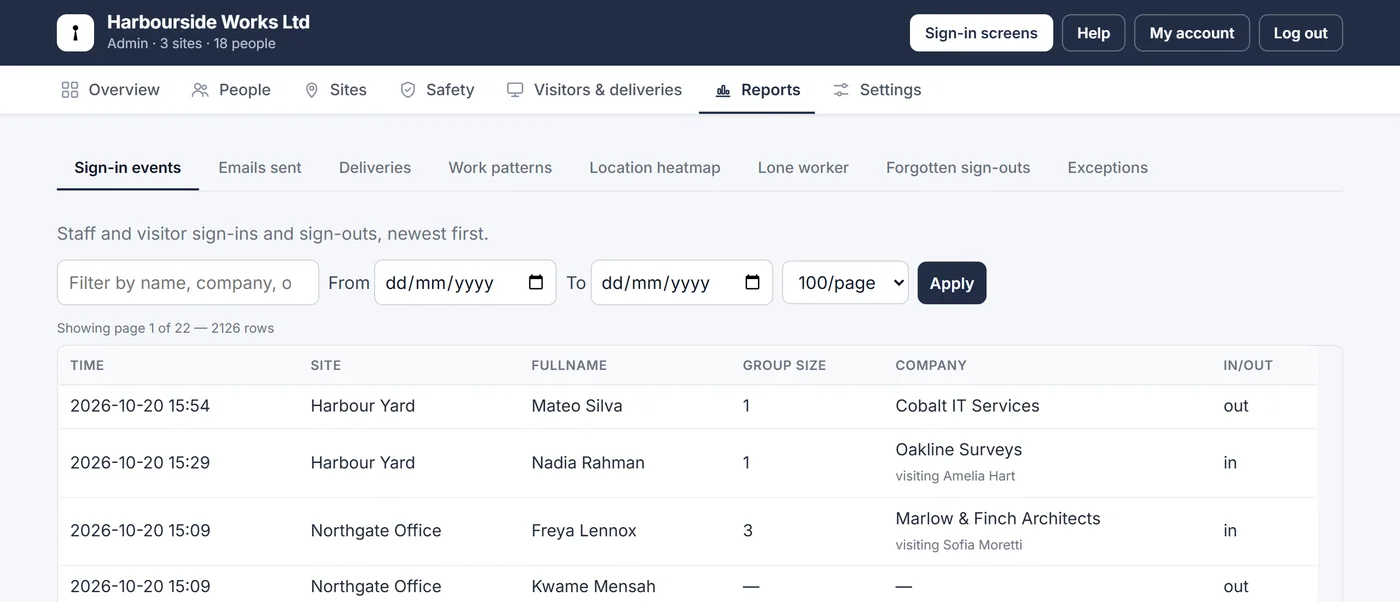
    Every delivery recorded at your sign-in screens, in one searchable list.

    • When, which site, who it was for, the description, where it was left, who received it, and whether they were emailed.
    • Filter by person, description or site, and by date. The Deliveries settings page shows the last ten with a link to the full list.
    • Kept as long as your history retention setting, like the rest of your records.
    The Deliveries report: a table of deliveries with site, recipient, description, where it was left and who received it
  19. New

    An Overview page: who's on site now, and what's switched on

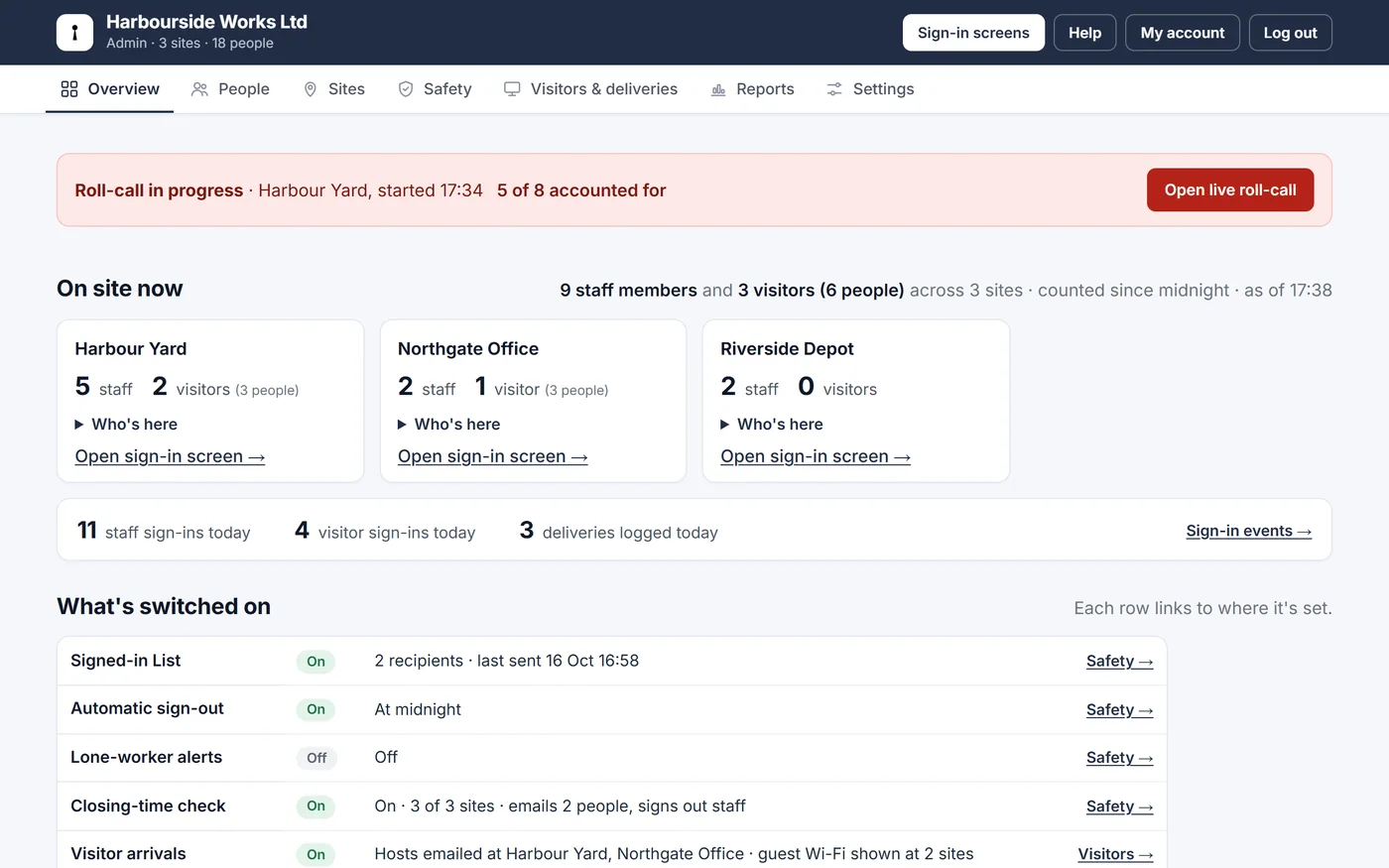
    Admin now opens on an Overview that answers the questions you ask most often, without clicking anywhere else.

    • A card for each site shows how many staff and visitors are signed in right now, with the names a click away and a link to its sign-in screen.
    • Today's staff sign-ins, visitor sign-ins and deliveries at a glance, plus a note of anything that needs attention: a trial ending, all your sites in use, or someone working alone.
    • A "What's switched on" table lists the state of the Signed-in List, automatic sign-out, lone-worker alerts, deliveries, view-only links, tablet logins, branding and your plan, each linking to where it's set. Anything half set up is flagged.
    The Overview page: who is on site at each location, today's numbers and a table of what's switched on
  20. Improved

    A simpler admin area

    Seven tabs instead of eleven, clearer headers, and the roll-call settings together in one place.

    • Overview, People, Sites, Safety, Displays & deliveries, Reports and Settings. Pages with several parts show a second row of tabs underneath. Every link and bookmark you had still works.
    • The people who receive the Signed-in List are now set on the Safety tab, next to automatic sign-out and lone-worker alerts.
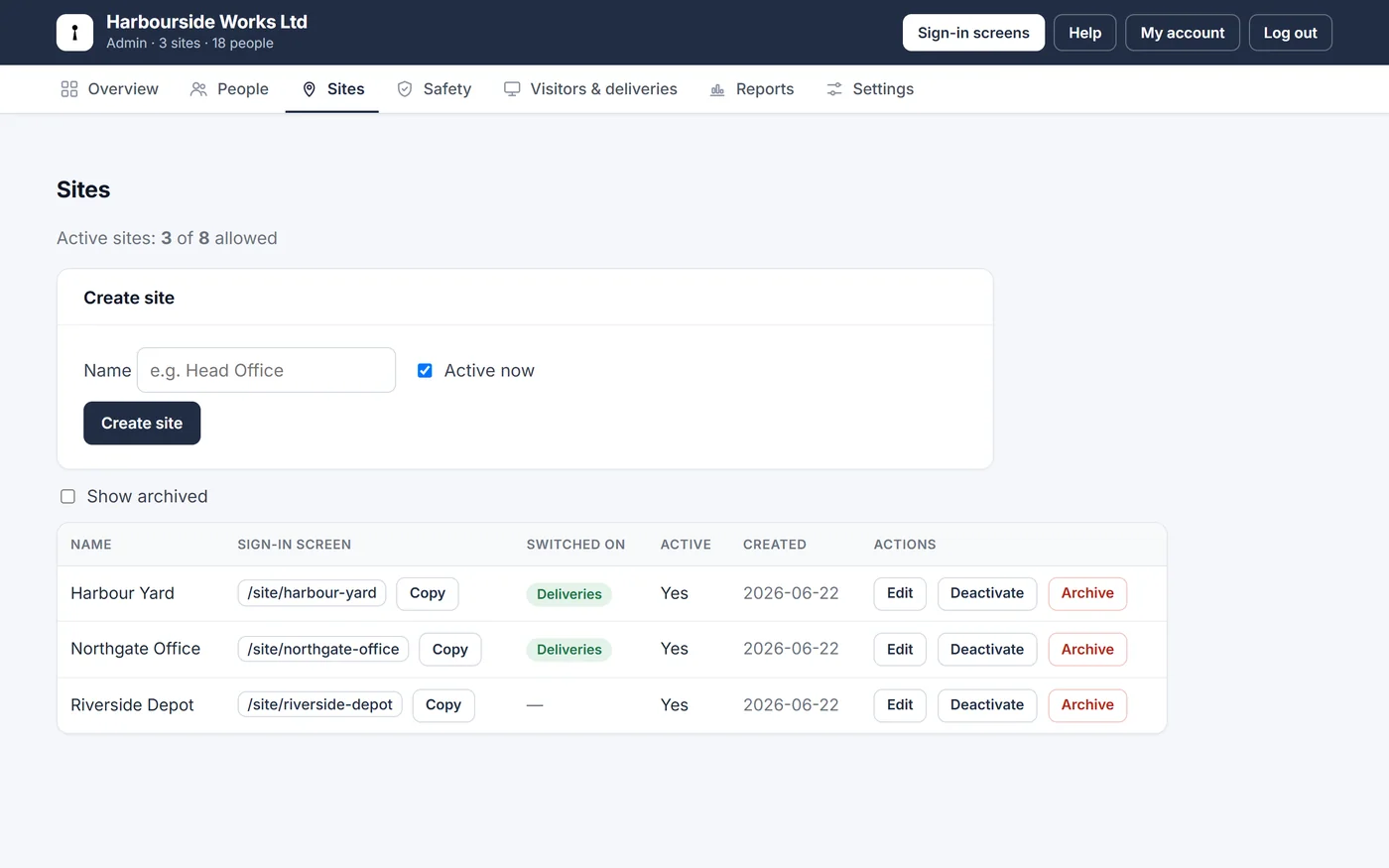
    • Sites shows each sign-in screen's address with a Copy button, and which features are on at each site. Tabs have icons, and the header on every page matches.

    The Sites page with the new header, icon tabs and a Copy button for each sign-in screen address
  21. New

    Lone-worker alerts

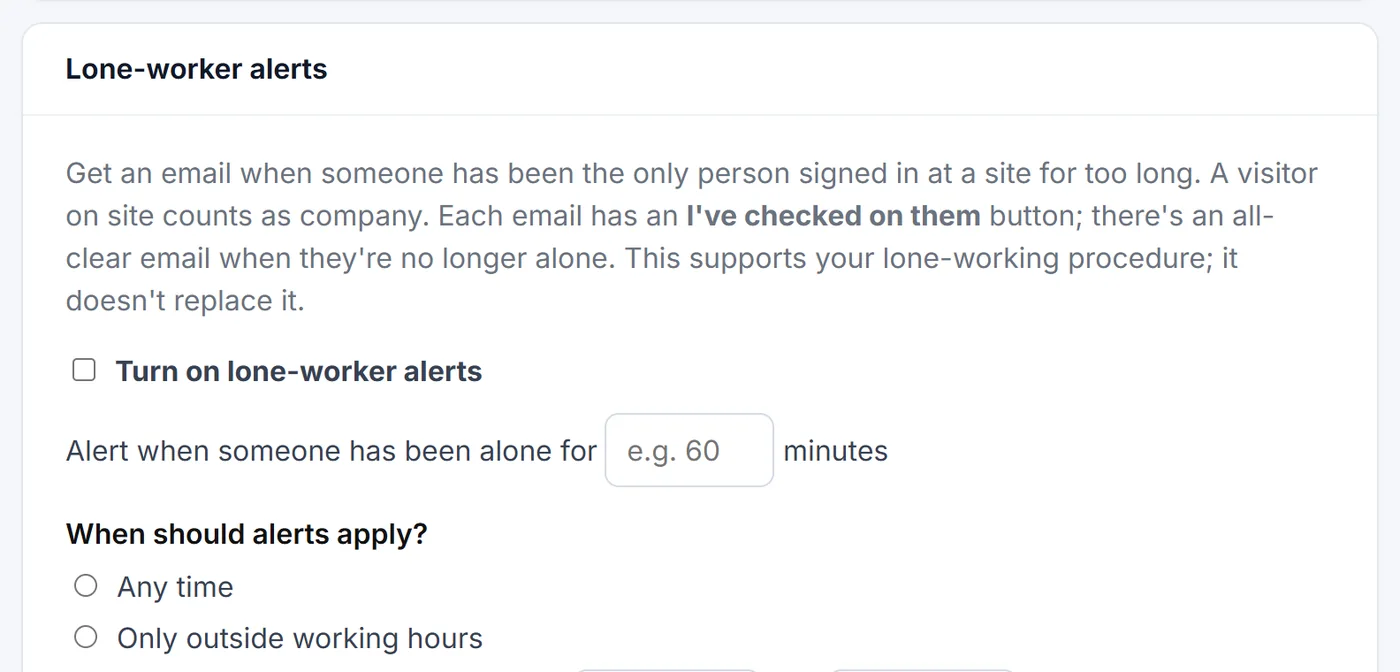
    Get an email when someone has been the only person signed in at a site for too long, with a one-tap way to say you've checked on them.

    • Choose how long counts as too long, which sites to watch and who to tell. Alerts can apply all the time or only outside working hours.
    • Optional escalation to a second contact if nobody responds, and optional check-ins that ask the person working alone to tap I'm OK.
    • Everyone gets an all-clear when they're no longer alone. Off until you turn it on, on every plan.
    The lone-worker alerts settings: minutes alone, when alerts apply, who to email and which sites to watch
  22. Improved

    A Safety tab and a Logs tab

    Safety settings and your logs each have their own place in the admin area.

    • Safety holds automatic sign-out and lone-worker alerts.
    • Logs puts the Event Log and Email Log side by side, like the Analytics reports.
    The Logs tab with Event Log and Email Log
  23. New

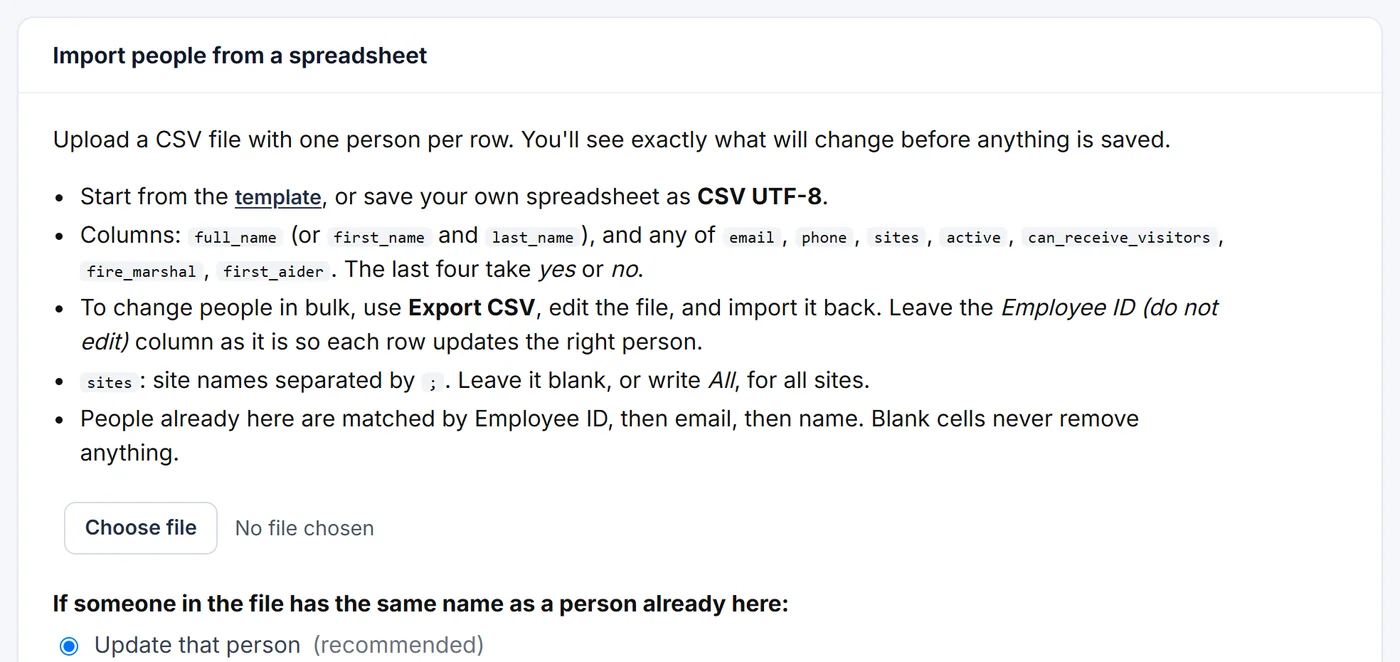
    Import and export your people with a spreadsheet

    Add your whole team in one go, or change lots of people at once, with a CSV file from Excel or Google Sheets.

    • Start from a template that already uses your own site names, or upload the spreadsheet you have.
    • A preview shows every new person and every change before anything is saved, and flags any line that needs fixing.
    • Export everyone, edit in bulk and import the file back. Renames update the right person.
    The import screen: upload a CSV file of people and check it before anything is saved
  24. New

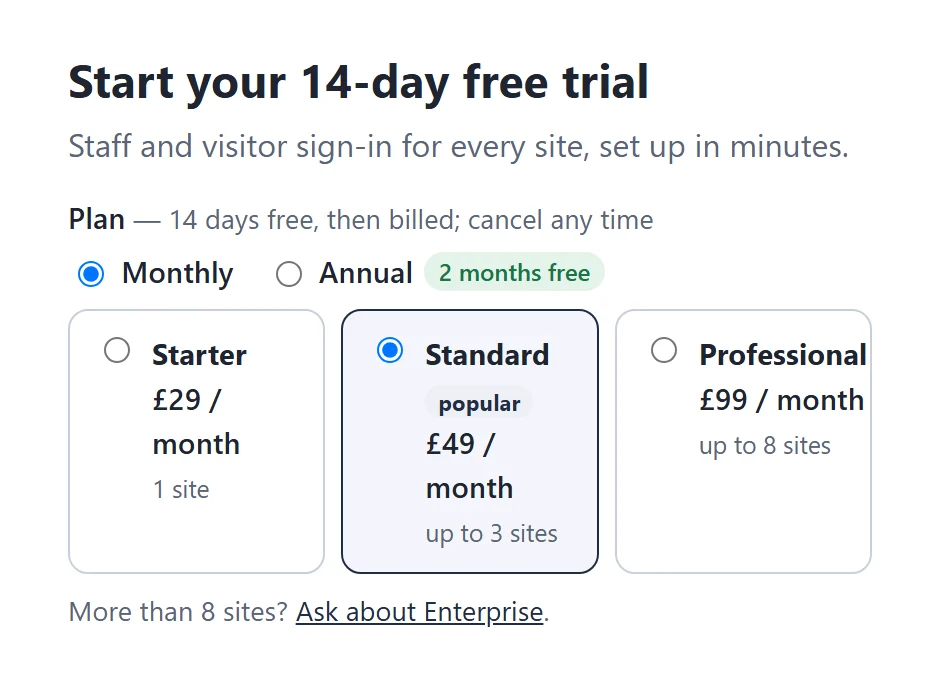
    Clavarius is open to everyone

    After a year of invite-only access, anyone can now sign up for Clavarius online and start a 14-day free trial.

    • Sign up in a few minutes: choose your organisation's address, add your first site and you're ready to sign people in.
    • 14 days free on any plan. Nothing is charged until the trial ends, and you can cancel before then.
    • Three plans priced by site, not by person, with every feature and unlimited staff and visitors on all of them.
    The Clavarius sign-up form: start your 14-day free trial
  25. New

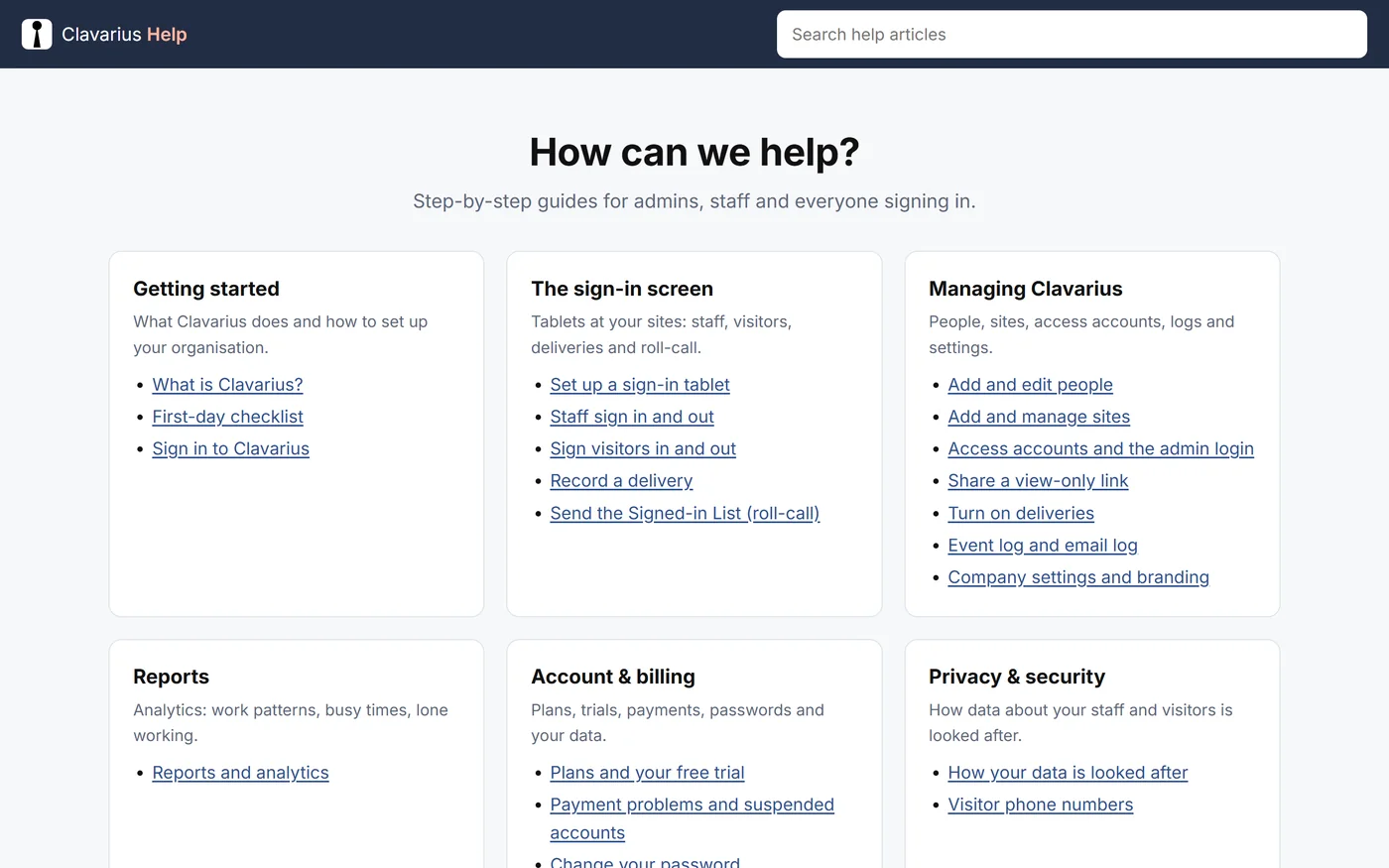
    A help centre, and a Help button on every admin page

    Step-by-step guides for everything in Clavarius, with screenshots, at help.clavarius.io.

    • Every admin page has a Help button that opens the guide for the page you're on.
    • Sign-in tablets never show it, so nobody at the front door is led away from the sign-in screen.
    The Clavarius help centre home page
  26. Improved

    A cleaner admin area and a new site picker

    The admin area has a calmer, more professional look, and choosing a site on a tablet is easier.

    • A white top bar with your organisation's name and the sections underneath as tabs.
    • Clear white panels and tables, quieter row buttons, and destructive actions shown in red.
    • After signing in, a "Choose a site" screen with your logo and large, easy-to-tap site cards.
    The Sites page in the redesigned admin area
  27. Privacy

    Data & privacy: export, retention and closing your account

    A new Data & privacy tab puts the controls you need under UK GDPR in your own hands.

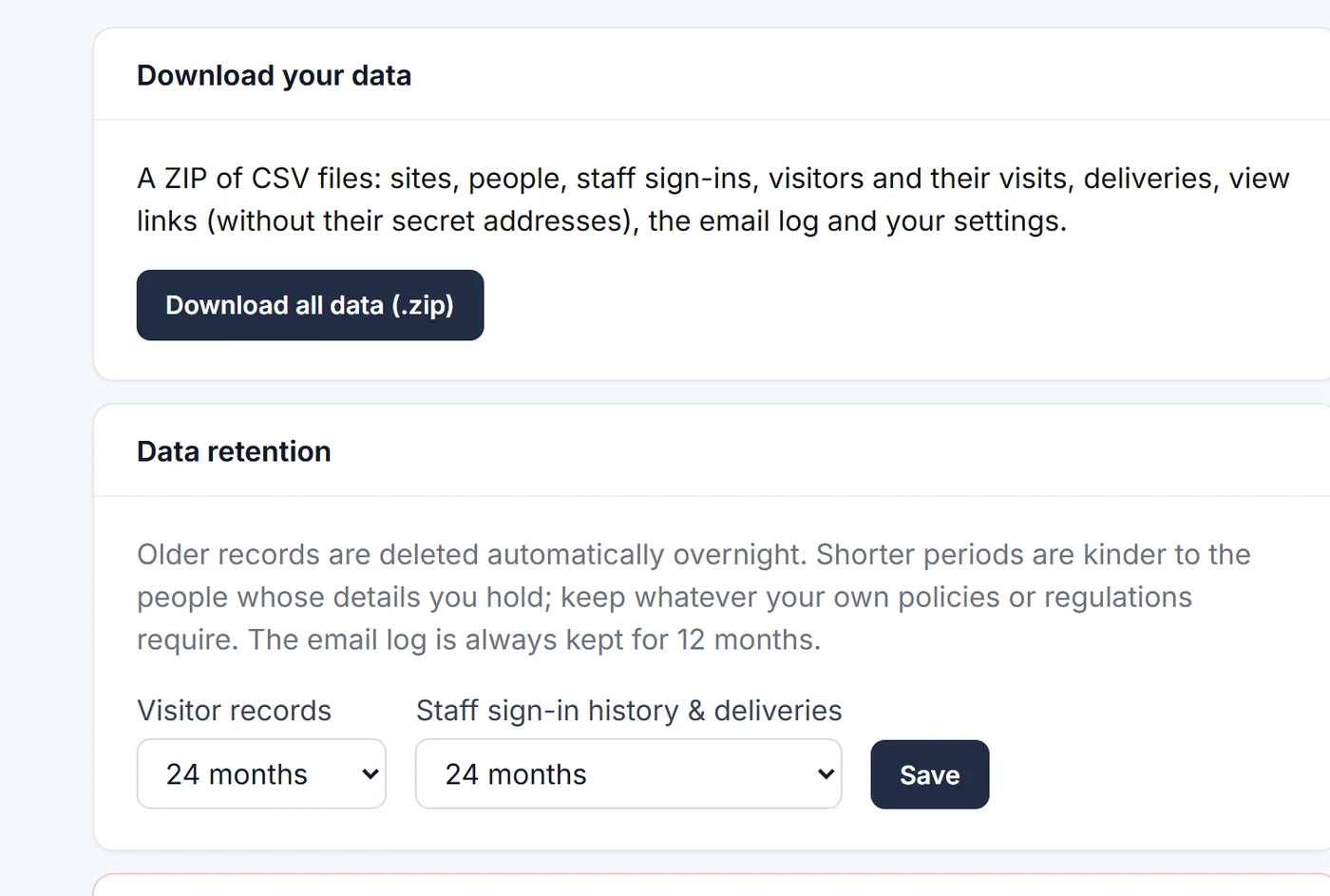
    • Download everything Clavarius holds for your organisation as spreadsheets in one ZIP.
    • Choose how long visitor records and sign-in history are kept; older records are deleted overnight.
    • Close your account yourself, with 30 days to change your mind before everything is deleted.
    The Data & privacy tab: download your data and data retention settings
  28. New

    Night shifts stay on the Signed-in List

    Choose when people who forget to sign out are signed out automatically.

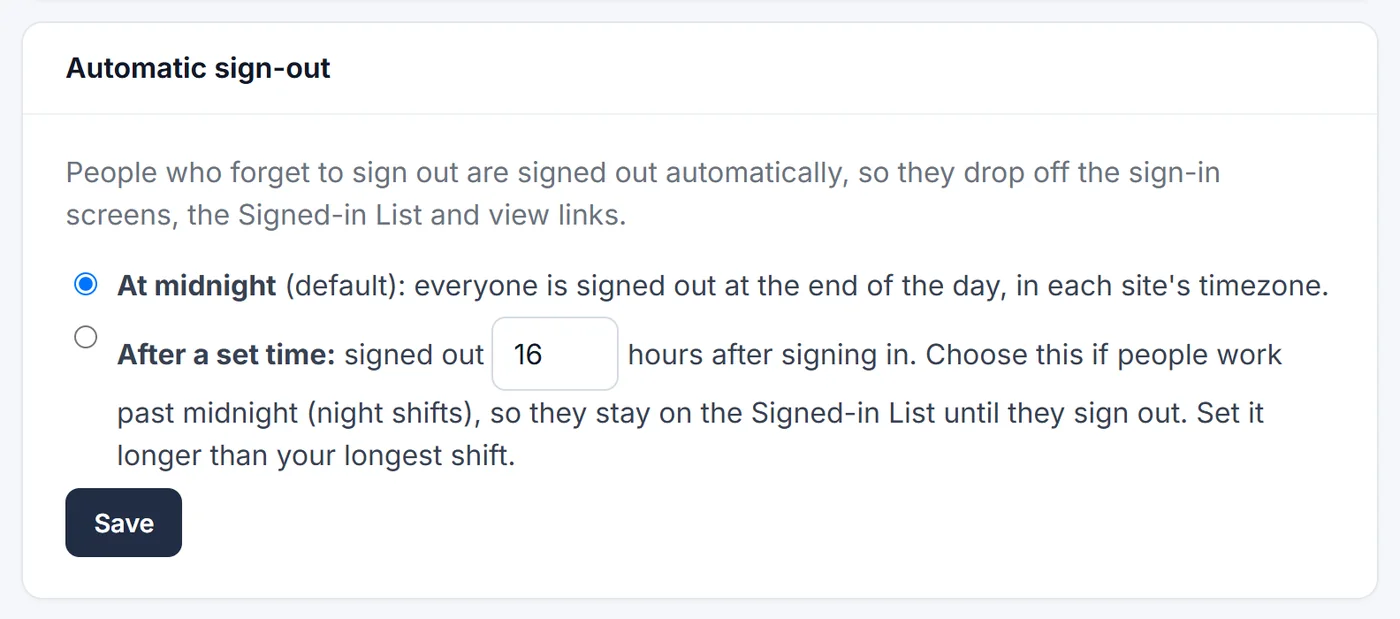
    • At midnight (the default), or a set number of hours after signing in.
    • With the hours option, anyone working through the night stays on the roll-call until they sign out.
    The Automatic sign-out setting with the midnight and set-time options
  29. Security

    Password reset, My account and tablets that stay signed in

    Looking after your logins got simpler and safer.

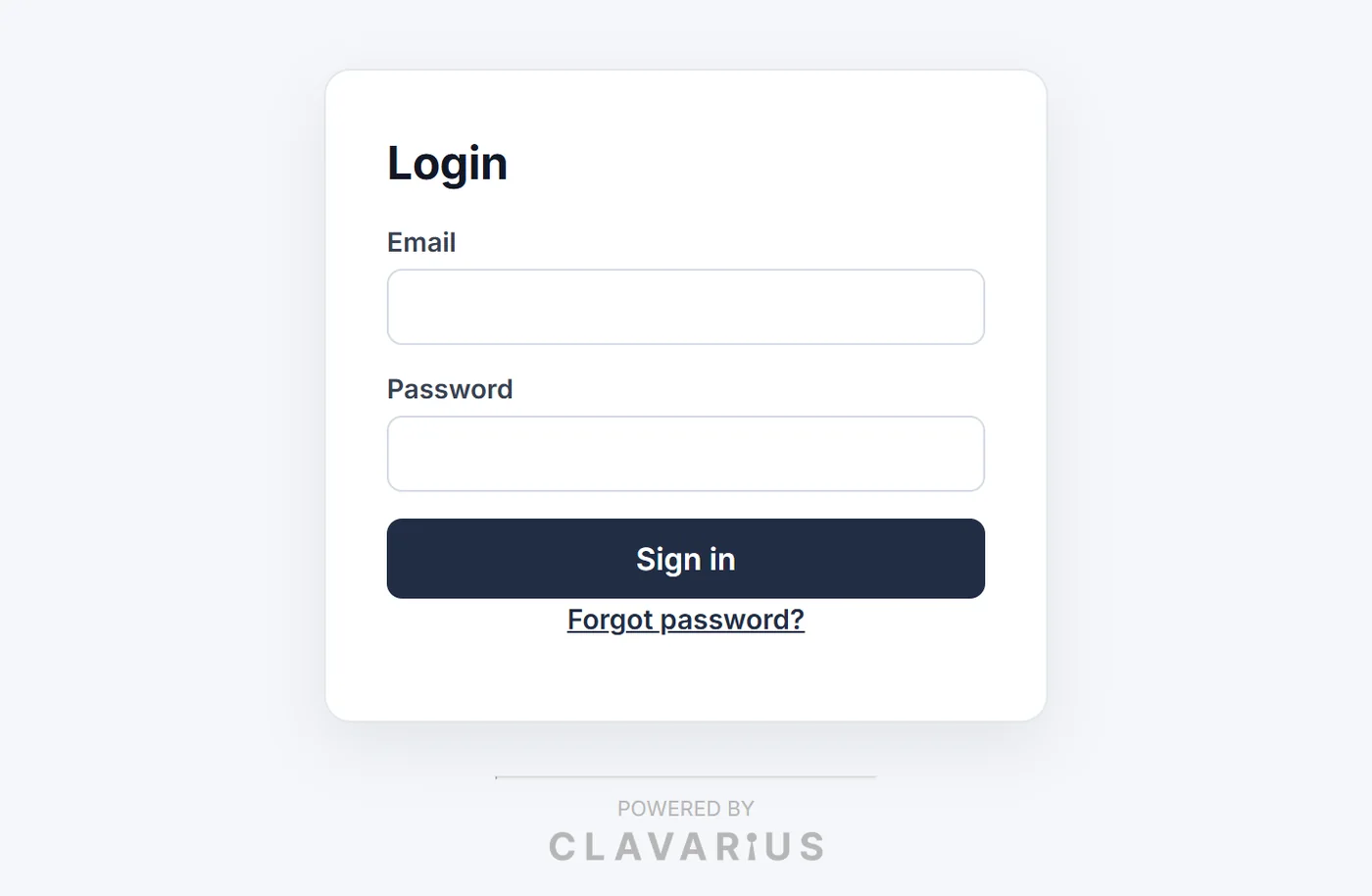
    • Forgot your password? Request a reset link from the sign-in page.
    • Change your own password from My account; it signs you out on your other devices.
    • Sign-in tablets stay signed in for weeks, so they don't ask for a password every morning.
    • Extra protection against repeated wrong passwords.
    The Clavarius sign-in page
  30. New
    Reports: Lone Worker

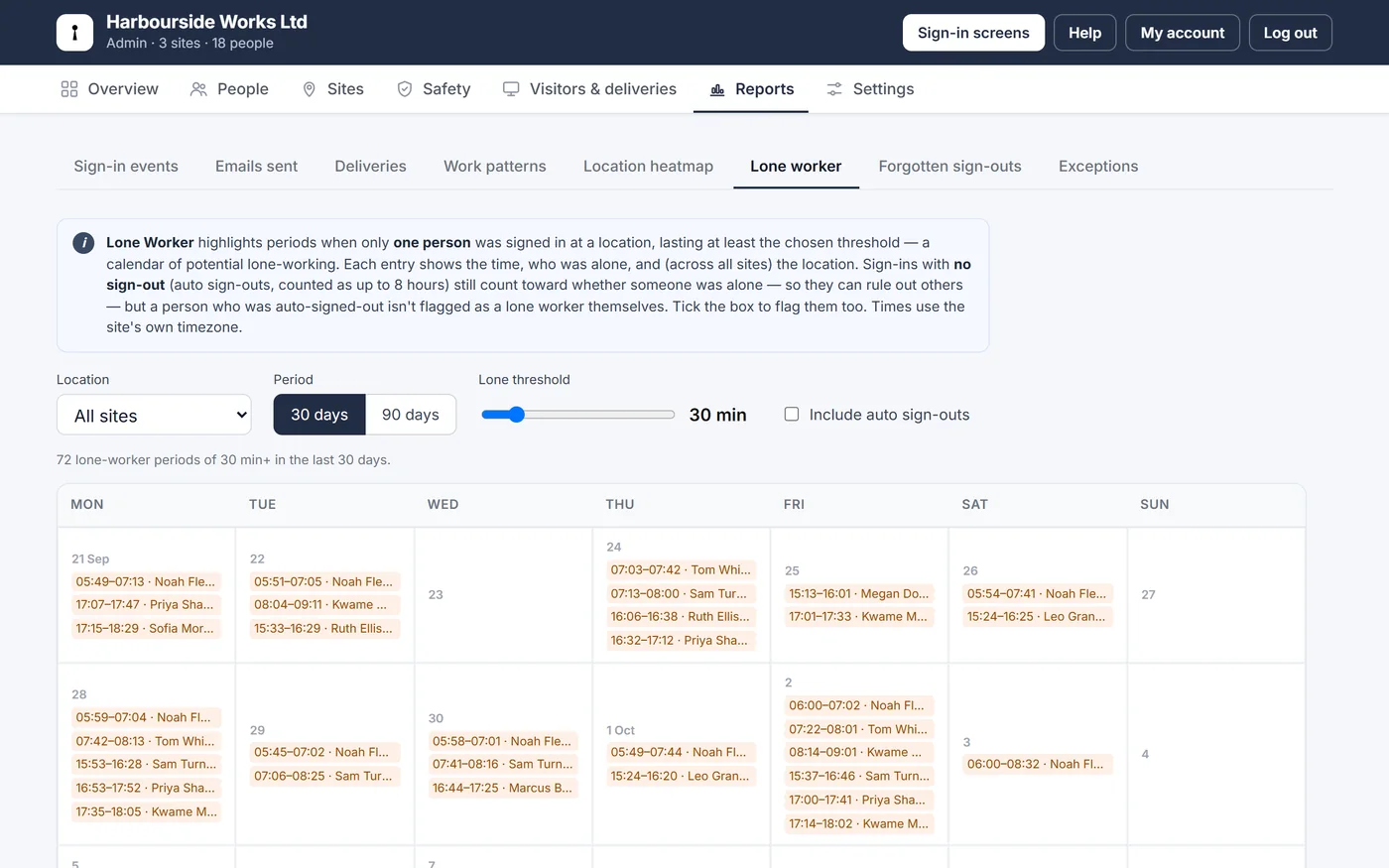
    See when one person was alone on site, to check your lone-working policy is being followed.

    • A calendar of every period when exactly one person was signed in at a site.
    • Choose the shortest period worth flagging, from 15 minutes to 3 hours, for one site or all of them.
    The Lone Worker report: a calendar of lone-working periods
  31. New

    Reports: Auto Sign-out %

    Find out who most often forgets to sign out.

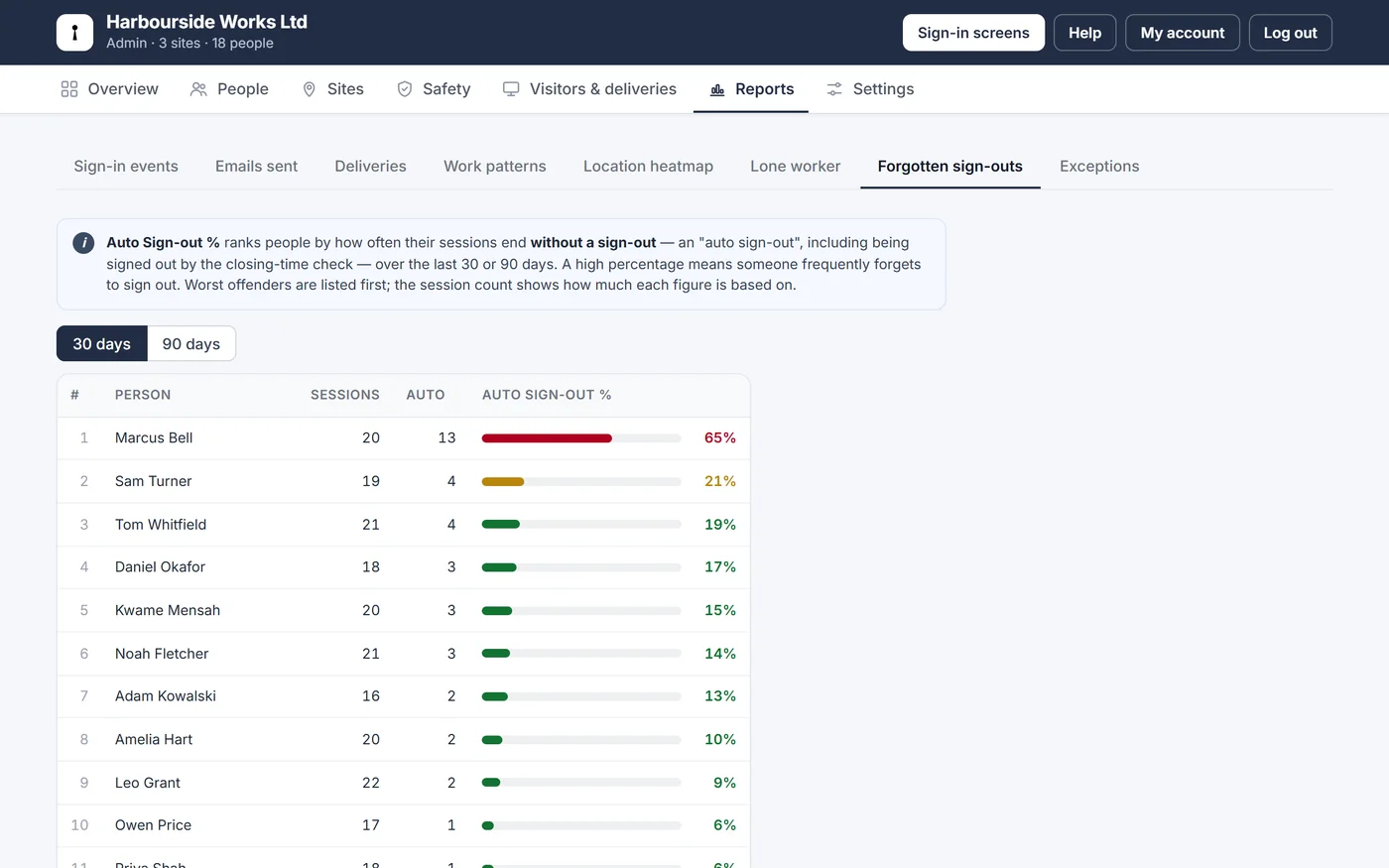
    • Everyone ranked by the share of their visits with no sign-out, over the last 30 or 90 days.
    • Colour-coded, with the number of visits alongside so you can see how much it's based on.
    The Auto Sign-out % report ranking people by missed sign-outs
  32. New

    Reports: Location Heatmap

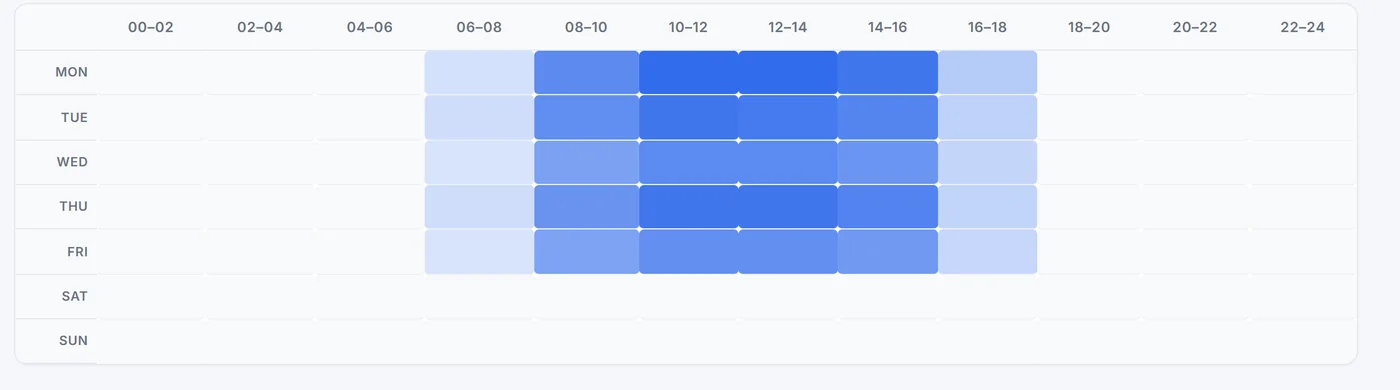
    See when each of your sites is busiest, hour by hour, across the week.

    • A grid for every site: days down the side, two-hour blocks across.
    • Darker means more people on site, compared with that site's busiest time.
    A heatmap of busy times by day and hour at one site
  33. New

    Reports: Work Patterns

    A new Reports area in Admin, starting with a calendar of each person's time on site.

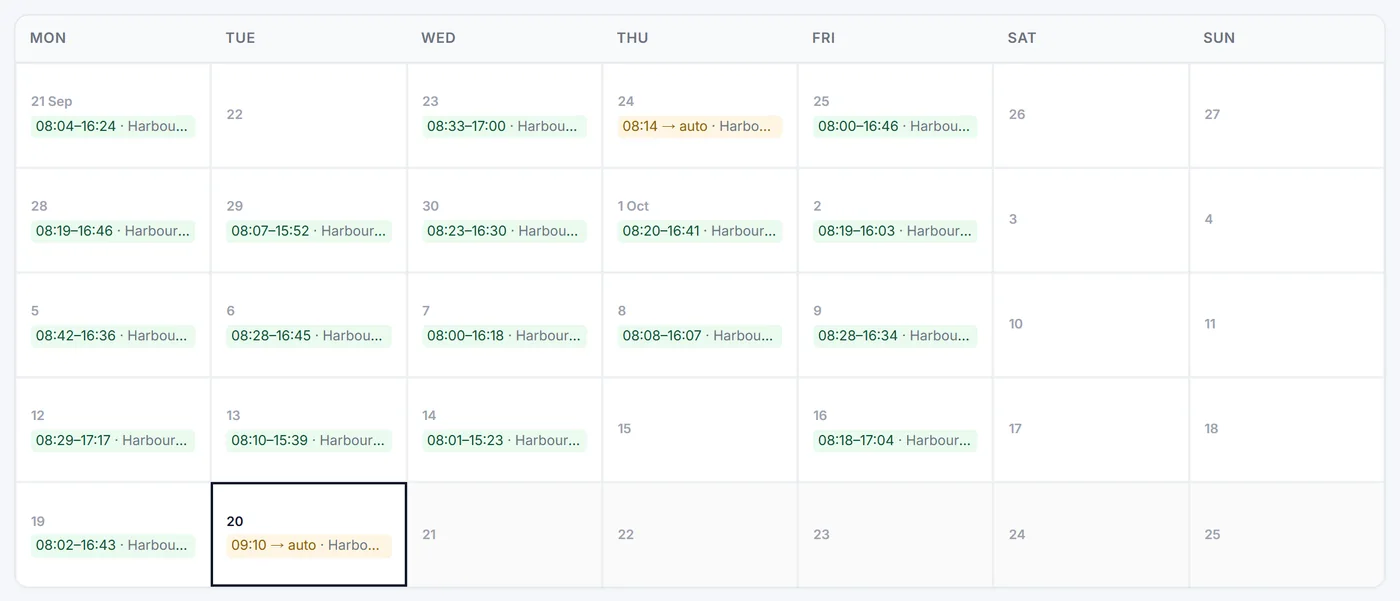
    • Pick a person to see when and where they signed in and out over the last 30 or 90 days.
    • Days with no sign-out are highlighted, so missed sign-outs are easy to spot.
    One person's sign-in times shown as a monthly calendar
  34. New

    Email log

    Every email Clavarius sends for you is now listed in Admin โ†’ Email Log.

    • Signed-in Lists and delivery notifications, with who they went to and when.
    • Each one marked sent or failed, so you can check an email really went.
    The Email log listing recent emails and whether they were sent
  35. New

    Deliveries

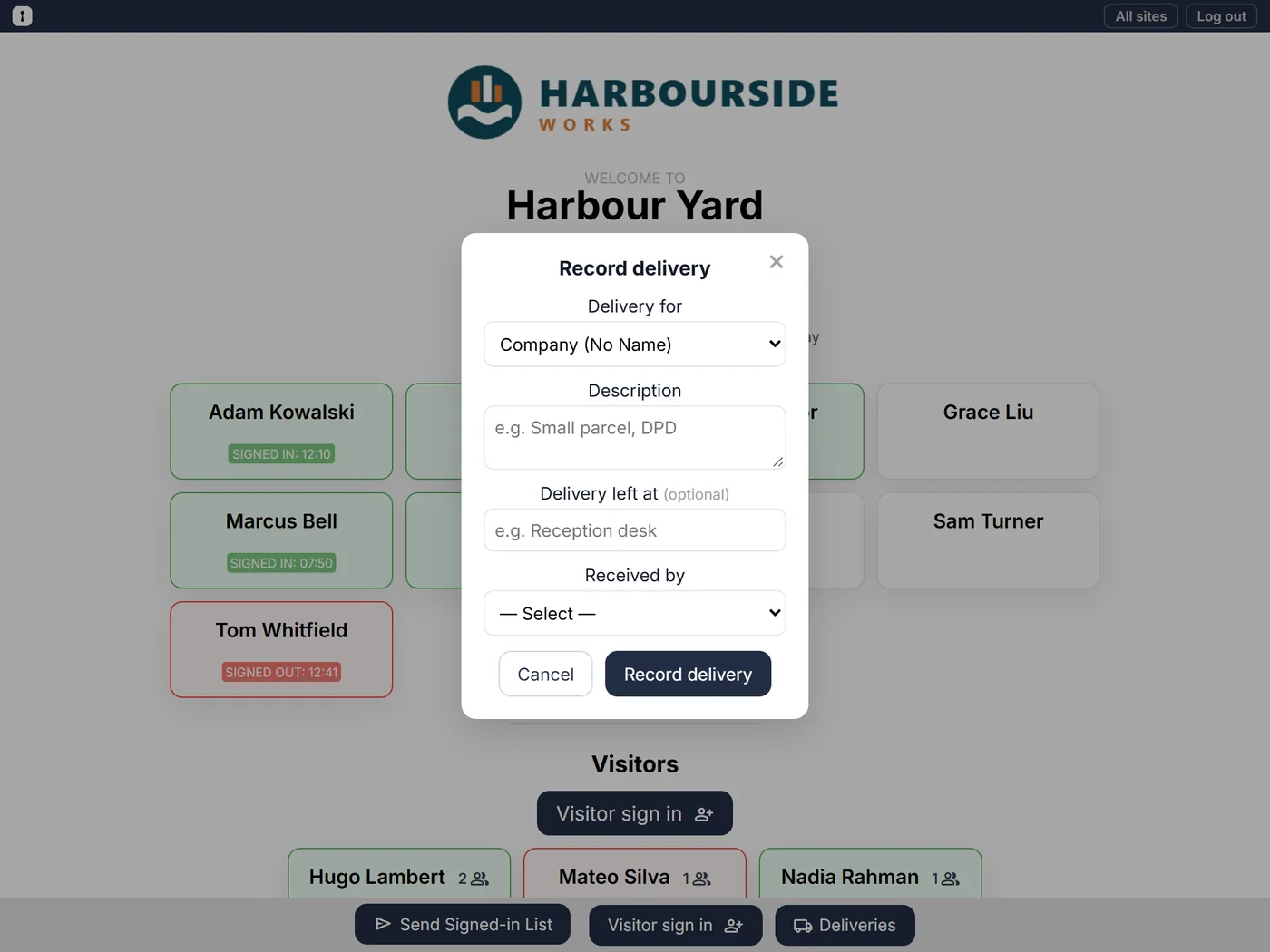
    Record parcels at the sign-in screen and let the person they're for know straight away.

    • Log who it's for, what it is, where it was left and who took it in.
    • The recipient gets an email; company parcels go to the inboxes you choose.
    • Turn deliveries on for the sites that need them, and share the delivery log with a view-only link.
    Recording a delivery on the sign-in tablet
  36. Privacy

    Visitor phone numbers deleted overnight

    Phone numbers are only needed while a visitor is on site, so Clavarius no longer keeps them.

    • Numbers are deleted automatically overnight once the visitor has signed out.
    • The sign-in form tells visitors so, right under the phone field.
    The visitor sign-in form with the note about phone numbers
  37. Improved

    Visitor sign-in always within reach

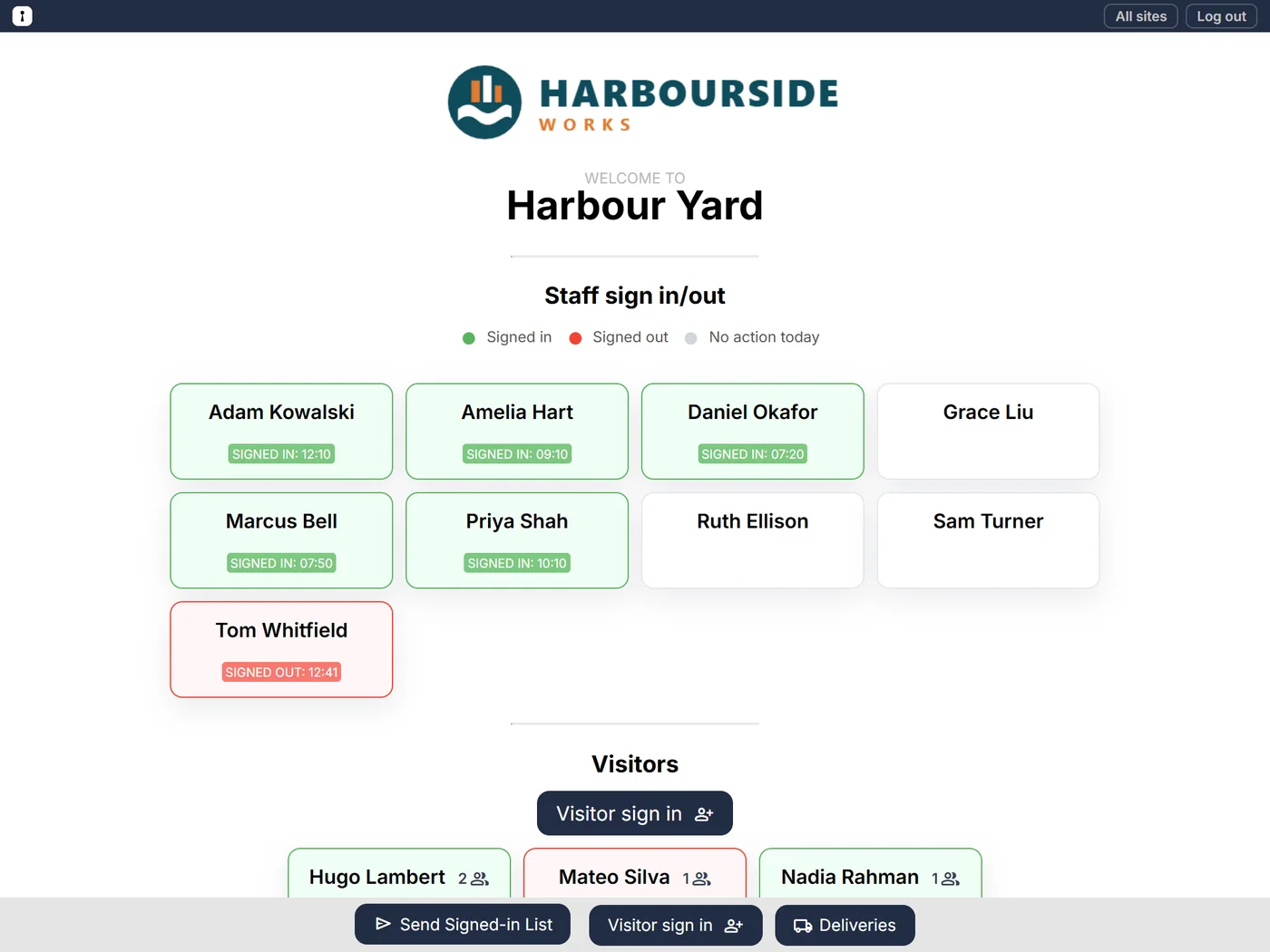
    A Visitor sign in button now sits in the bar along the bottom of every sign-in screen.

    • However long the list of staff, visitors never have to scroll to find it.
    The sign-in screen with the bar of buttons along the bottom
  38. New

    View-only links for fire marshals

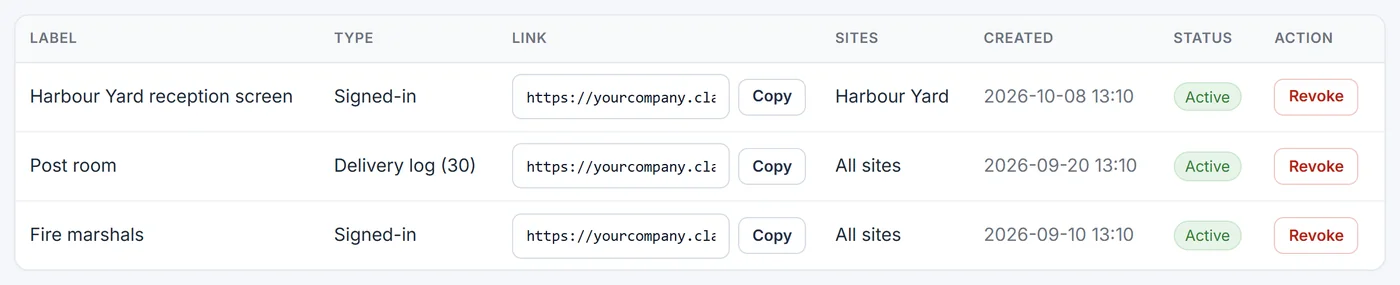
    Share a live list of who's on site that anyone with the link can open, no login needed.

    • Ideal for a fire marshal's phone or a screen in reception; it updates itself every minute.
    • Limit a link to certain sites, label it, and revoke it at any time.
    The list of view-only links, each with a Copy button
  39. Improved

    Your branding on every email

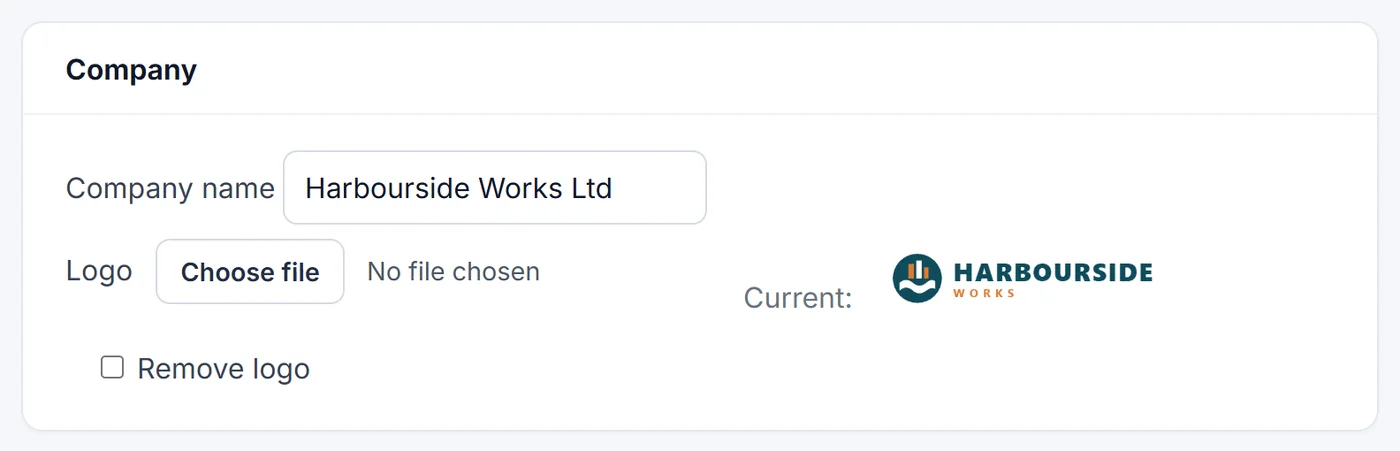
    Signed-in List and delivery emails now carry your logo and company name.

    • Upload your logo once in Admin โ†’ Settings; it appears on the sign-in screens and in every email.
    Company name and logo settings
  40. Improved

    One person, one site

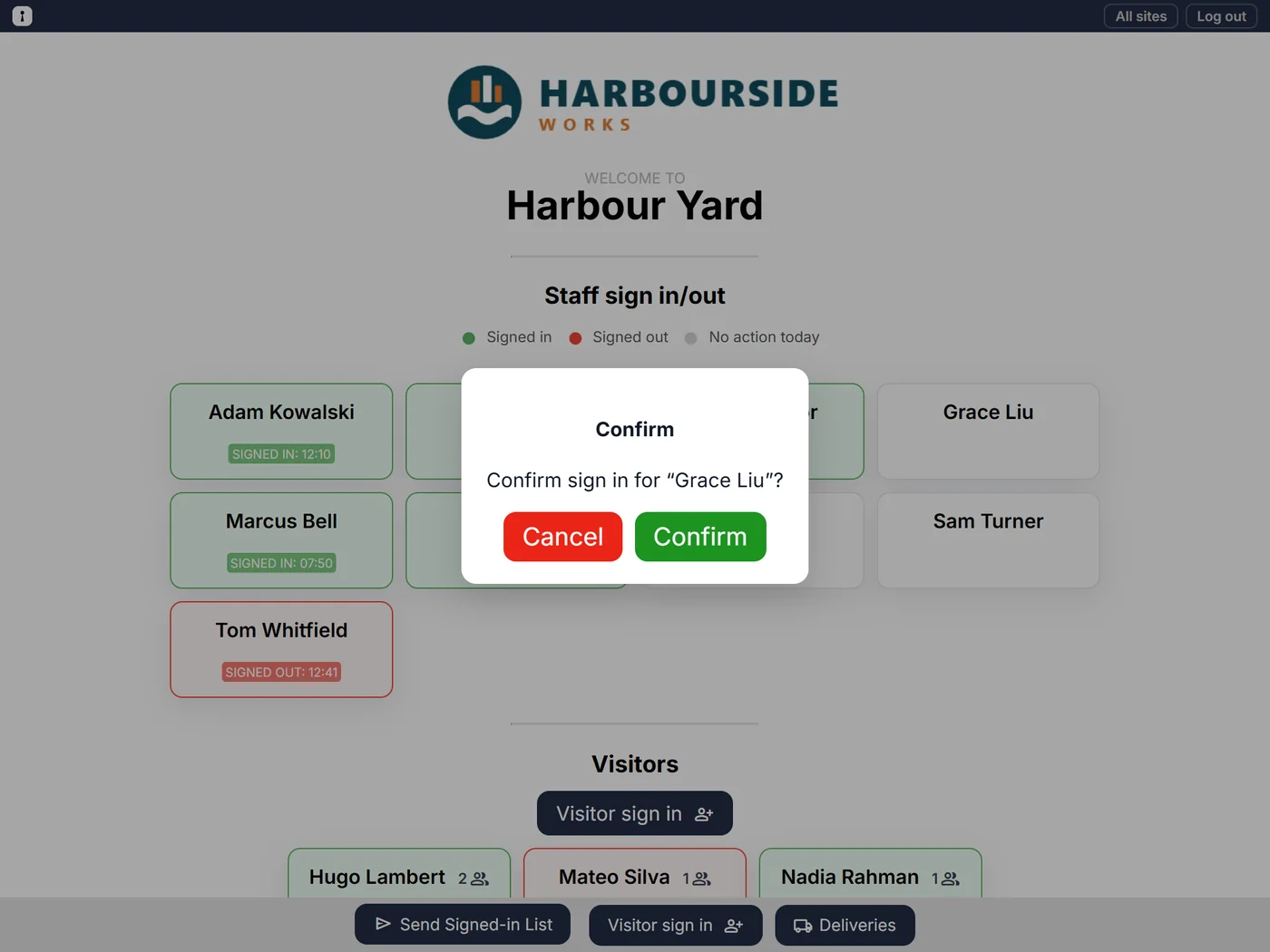
    Signing in at a second site now signs you out of the first, so nobody is counted in two places.

    • The confirmation tells you when it has signed you out somewhere else.
    Confirming a staff sign-in on the tablet
  41. New

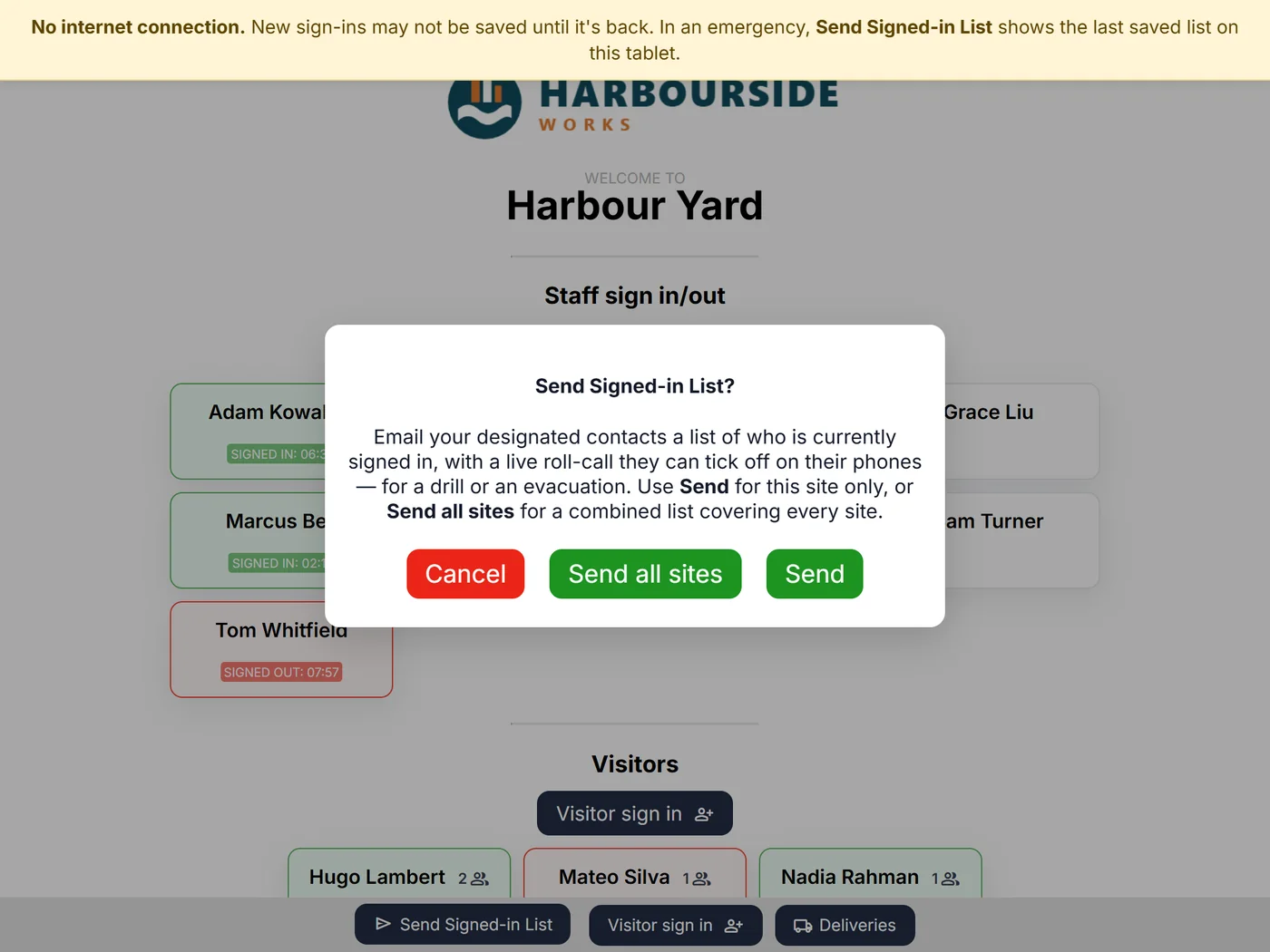
    Send the Signed-in List for every site at once

    During an evacuation, one tap now emails a single list covering all of your sites.

    • Each site's staff and visitors, with counts per site and a total.
    • Send still sends just the site you're at.
    Choosing Send or Send all sites for the Signed-in List
Scroll to Top